Background runs handle eligible Dynamics-to-Jira updates and record creation flows.
Documentation validated for connector build on March 22, 2026
Technical deployment guide for the Microsoft Dynamics 365 Connector for Jira
This guide covers Marketplace installation, Microsoft Entra and Dataverse authentication, Smart Connected Items, sync rules, and issue-panel operations for enterprise Jira environments.
Marketplace app
Forge app
Jira admin page
Dynamics 365 / Dataverse
Issue updates, comments, and qualifying attachments push from Jira to Dynamics.
Larger files are skipped to stay inside platform runtime and payload boundaries.
Linked records can expose a visible Jira reference on the Dynamics timeline.
Fast Path
Deployment quick start in six steps
Install the app
A site admin or organization admin installs the app from Atlassian Marketplace and then opens the app configuration from Jira administration.
Register a confidential Microsoft Entra app
Create a single-tenant app registration for Dataverse server-to-server authentication, then copy the Application (client) ID and Directory (tenant) ID.
Create a client secret
Generate a client secret and save the secret value. The value is shown only once in the Microsoft portal.
Create the Dataverse application user
In the Power Platform admin center, add the app registration as an application user in the target environment and assign a custom security role.
Authenticate inside Jira
Enter the Organization URL, Tenant ID, Client ID, and Client Secret Value in the app admin page and save the connection.
Create Smart Connected Items
Choose display-only, one-way, or two-way behavior; configure field mappings; and enable optional status, comment, and attachment sync where needed.
Architecture
How the connector works
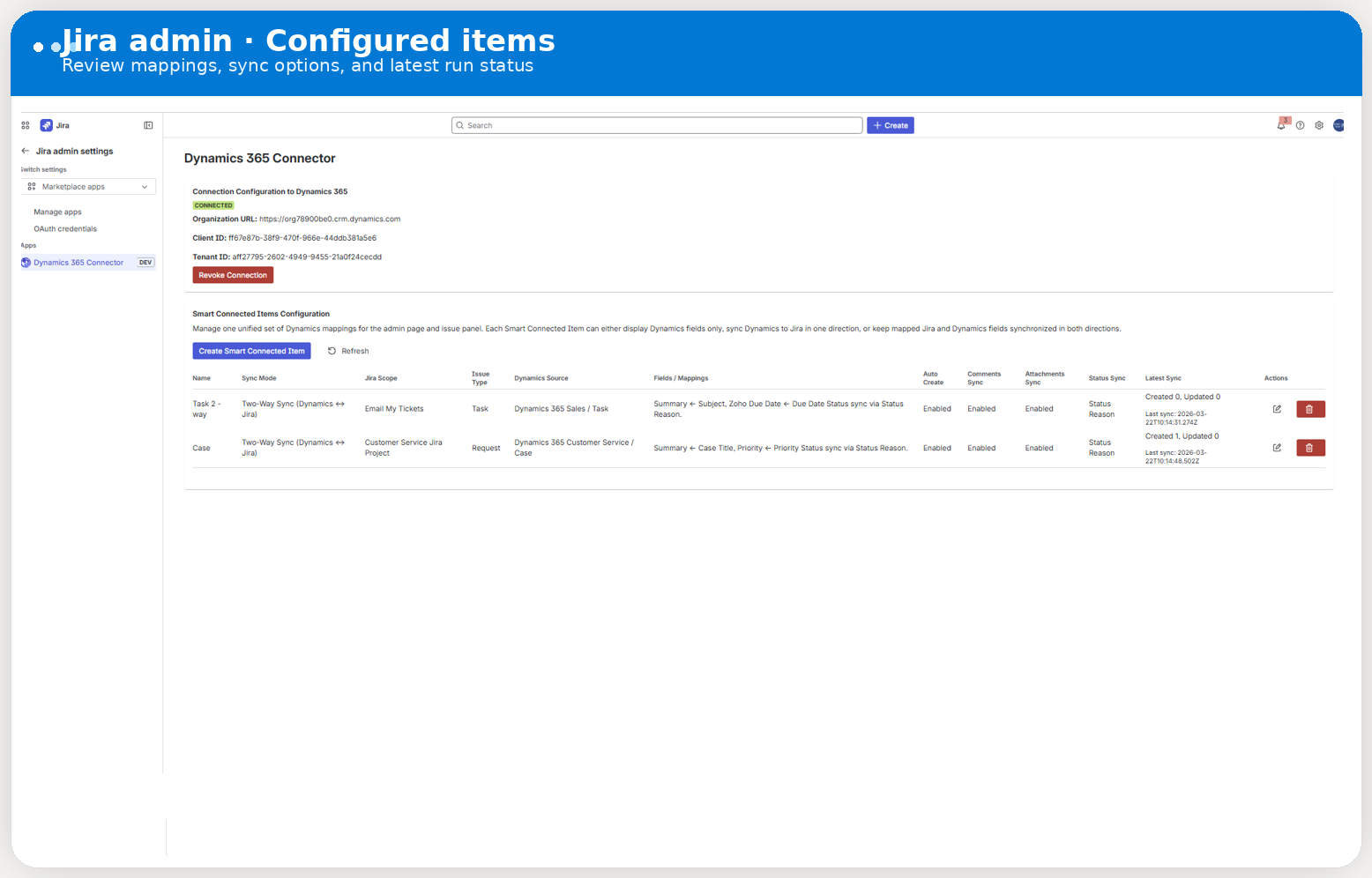
Real Jira admin screenshot of the configured items dashboard after a successful connection. This is the operational control surface where admins review Smart Connected Items, sync options, and recent run state.
Current sync model in this build
The scheduled trigger runs every five minutes. It creates Jira issues for new Dynamics records when auto-create is enabled, and it applies Dynamics -> Jira field, status, comment, and attachment changes for already linked records.
Jira -> Dynamics updates are event-driven. Jira issue update events push field and status changes. Jira comment events push comments. Jira attachment creation events push attachments.
Where configuration is stored
- Dynamics connection settings are stored in Forge app storage.
- The client secret is stored in Forge secret storage when the platform supports it.
- Smart Connected Item definitions and issue-to-record link registrations are stored in Forge app storage.
Where visible record evidence appears
- Jira shows the issue panel with the linked record preview.
- Dynamics can show a connector-managed note on the timeline that names the Jira issue and its URL.
- Comments and attachments sync through Dataverse annotations.
Terminology
Key terms used in this guide
Display-only Smart Connected Item
A manual, read-focused mapping that lets Jira users link a Dynamics record in the issue panel and view selected fields. It does not create issues or run scheduled synchronization.
Synchronized Smart Connected Item
A one-project, one-issue-type automation mapping that can create Jira issues from Dynamics and synchronize fields, status, comments, and attachments depending on the options you enable.
Auto-managed link
A link created by the scheduled automation. Jira users can open the Dynamics record from the issue panel, but they cannot unlink or replace it manually.
Manual link
A link created from the Jira issue panel. Jira users can refresh the linked record preview and unlink it later. Manual links also participate in future scheduled synchronization for synchronized Smart Connected Items.
Marketplace Admin Guide
Install the app from Atlassian Marketplace
Who should perform the installation
The installation should be completed by a Jira site administrator or another Atlassian administrator who is allowed to install apps for the target cloud site.
- Open the Microsoft Dynamics 365 Connector for Jira listing on Atlassian Marketplace.
- Select the target Jira Cloud site.
- Approve the app installation and review the requested Jira scopes.
- Open Jira administration and navigate to the connector admin page.
What the installation gives you
- A Jira admin page for Microsoft authentication and Smart Connected Item setup.
- A Jira issue panel where users can search, link, refresh, and open Dynamics records.
- A scheduled integration job that runs every five minutes.
- Jira event handlers that push issue changes, comments, and attachments to Dynamics.
| Stage | Typical responsible admin | Why that level is needed |
|---|---|---|
| Install the app in Jira Cloud | Atlassian site administrator | Marketplace app installation is typically restricted to site administrators. |
| Create the Entra app registration and secret | Microsoft Entra admin with app-registration authority, commonly Cloud Application Administrator | Needed to create and manage the confidential application identity used by the connector. |
| Create the Dataverse application user and assign its role | Power Platform or Dynamics administrator with environment administration rights | Needed to add the application user to the environment and grant the required Dataverse access. |
| Authenticate and configure Smart Connected Items | Jira administrator | Needed to open the connector admin page and define project-specific Jira behavior. |
Best practice
Install the app first, but do not create Smart Connected Items until the Microsoft Entra app, Dataverse application user, and custom security role are ready. That keeps the first authentication pass clean and avoids partial configuration.
Microsoft Setup
Create the Microsoft Entra app registration
Open Microsoft Entra ID
In the Azure portal, open Microsoft Entra ID, then go to App registrations and create a new registration.
Use a single-tenant registration
For a single-customer deployment, use Accounts in this organizational directory only. The connector authenticates with the client credentials flow, so it does not need an interactive browser sign-in for end users.
No user-facing redirect is required for this connector flow
This connector does not sign users into Microsoft from the browser. The authentication happens server to server by using the tenant ID, client ID, and secret value stored in the Jira admin page.
Capture the two identifiers you will need later
Copy the Application (client) ID and Directory (tenant) ID. The Jira admin page requires both values.
Use the correct Dataverse organization URL
The connector needs the base Dataverse URL for the target environment, for example
https://org78900be0.crm.dynamics.com. Enter that exact organization URL in Jira later.
Authentication pattern used by this connector
This app uses a confidential client and requests a token from
https://login.microsoftonline.com/<tenant-id>/oauth2/v2.0/token with the scope
<organization-url>/.default. The Dataverse application user and security role define
what the app can do inside the environment.
Microsoft Setup
Azure / Microsoft Entra setup deep dive
Values you collect for the Jira admin page
- Organization URL: for example
https://<yourorg>.crm.dynamics.com - Tenant ID: the Microsoft Entra directory identifier
- Client ID: the application identifier of the app registration
- Client Secret Value: the secret value copied when it is created
Token scope used by this connector
The connector authenticates with client credentials and requests the scope
https://<yourorg>.crm.dynamics.com/.default.
The app then acts inside Dataverse through the application user that you create in the target Power Platform environment.
Create the app registration
In Azure Portal, open Microsoft Entra ID, go to App registrations, create a new registration, use a single-tenant app for this customer environment, and leave the redirect URI empty because this connector does not use an interactive browser sign-in flow.
Create the client secret and capture the secret value
Open Certificates & secrets, create a new client secret, and copy the value immediately. Microsoft only shows the value one time.
Add Dynamics CRM API permission and grant admin consent
In API permissions, add the Dynamics CRM API permission that your
Dataverse environment requires, then grant admin consent. The standard Dataverse application setup
pattern commonly uses user_impersonation in Microsoft guidance.
Create the Dataverse application user in the correct environment
Open https://admin.powerplatform.microsoft.com, select the environment that hosts the
target records, open Users + permissions, create a new
Application user, and bind it to the app registration.
Assign a dedicated least-privilege role
Assign a custom Dataverse security role that grants the connector only the table and note access it needs for the entities you map. Avoid broad administrative roles unless you intentionally want that scope.
| Privilege area | Recommended baseline | Why it matters |
|---|---|---|
| Mapped business tables | Organization-level Read, plus Write when two-way updates are enabled | Required to browse source records and update mapped fields or status values. |
| Notes and attachments | Create, Read, Write, Delete, Append, Append To on annotation |
Required for comment sync, attachment sync, and the connector-managed Jira link note. |
| Metadata discovery | Read only when you need the admin page to browse entities and fields dynamically | Keeps the role smaller when metadata discovery is not needed. |
Quick validation checklist
The Tenant ID, Client ID, and Client Secret Value can obtain a token successfully.
The Dataverse Web API answers without a 401 or 403 response.
The application user exists in the correct environment.
The assigned security role can read the entities that your Smart Connected Items target.
Common Entra and Dataverse setup failures
401 or 403: admin consent is missing, the application user is absent, or the role is too narrow.
No results in record search: the application user cannot read that Dataverse table.
Token audience mismatch: the connector is not using the correct .default scope for the organization URL.
Microsoft Setup
Create the client secret
How to create it
- Open the app registration.
- Go to Certificates & secrets.
- Create a new Client secret.
- Copy the secret value immediately.
Important handling rules
- The Microsoft portal shows the secret value only once.
- The Jira admin page expects the secret value, not the secret ID.
- When a secret expires, the connection will fail until the admin updates the stored value in Jira.
- The connector stores the secret in Forge secret storage when the platform supports it.
A common setup mistake
Do not paste the secret identifier into Jira. The connector needs the actual secret value that Microsoft reveals one time after creation.
Microsoft Setup
Create the Dataverse application user
Why this step matters
The app registration alone is not enough. The target Dataverse environment must contain an application user linked to that app registration. This user becomes the identity that the connector uses inside Dynamics 365 / Dataverse.
Where to create it
Open the Power Platform admin center, select the target environment, open the users area, choose Application users, and create a new application user that points to the Microsoft Entra app registration.
Select the same environment that hosts the target records
The environment must be the one that contains the Cases, Tasks, Leads, Opportunities, or other Dataverse tables you want to connect.
Pick the app registration by client ID
Choose the application you created in Microsoft Entra. Dataverse then creates an application user tied to that client ID.
Assign a custom security role
Give the application user a role that grants the exact table-level access the connector needs. Do not assign overly broad administrative privileges unless you intentionally accept that risk.
Microsoft Setup
Build the Dataverse security role
Least-privilege recommendation
Create a custom Dataverse security role for the connector instead of using broad built-in roles. The goal is to let the connector read and update only the tables, notes, and files it needs.
| Area | Recommended privileges | Why the connector needs it |
|---|---|---|
| Target business tables | Read, Write, Append To | Needed to read source records and update mapped fields or status values. |
Activity / note table (annotation) |
Create, Read, Write, Delete, Append, Append To | Needed for comments sync, attachments sync, and the visible Jira link note. |
| Case resolution flow | Privileges required to close or cancel incident records |
Needed when a Jira issue transitions to a closing state and the linked record is a Dynamics Case. |
| Lookup tables referenced by mappings | Read | Needed when mapped fields depend on related Dataverse values. |
Entity coverage
Include the exact Dataverse tables your Smart Connected Items will target. For example,
Customer Service deployments commonly include incident, while Sales deployments
might include task, lead, or opportunity.
Permission scope choice
Many customers use organization-level privileges for service integrations so the connector can see the records it needs across teams and business units. If your governance model requires a narrower scope, validate all target entities carefully before go-live.
Jira Administration
Authenticate the connector in the Jira admin page
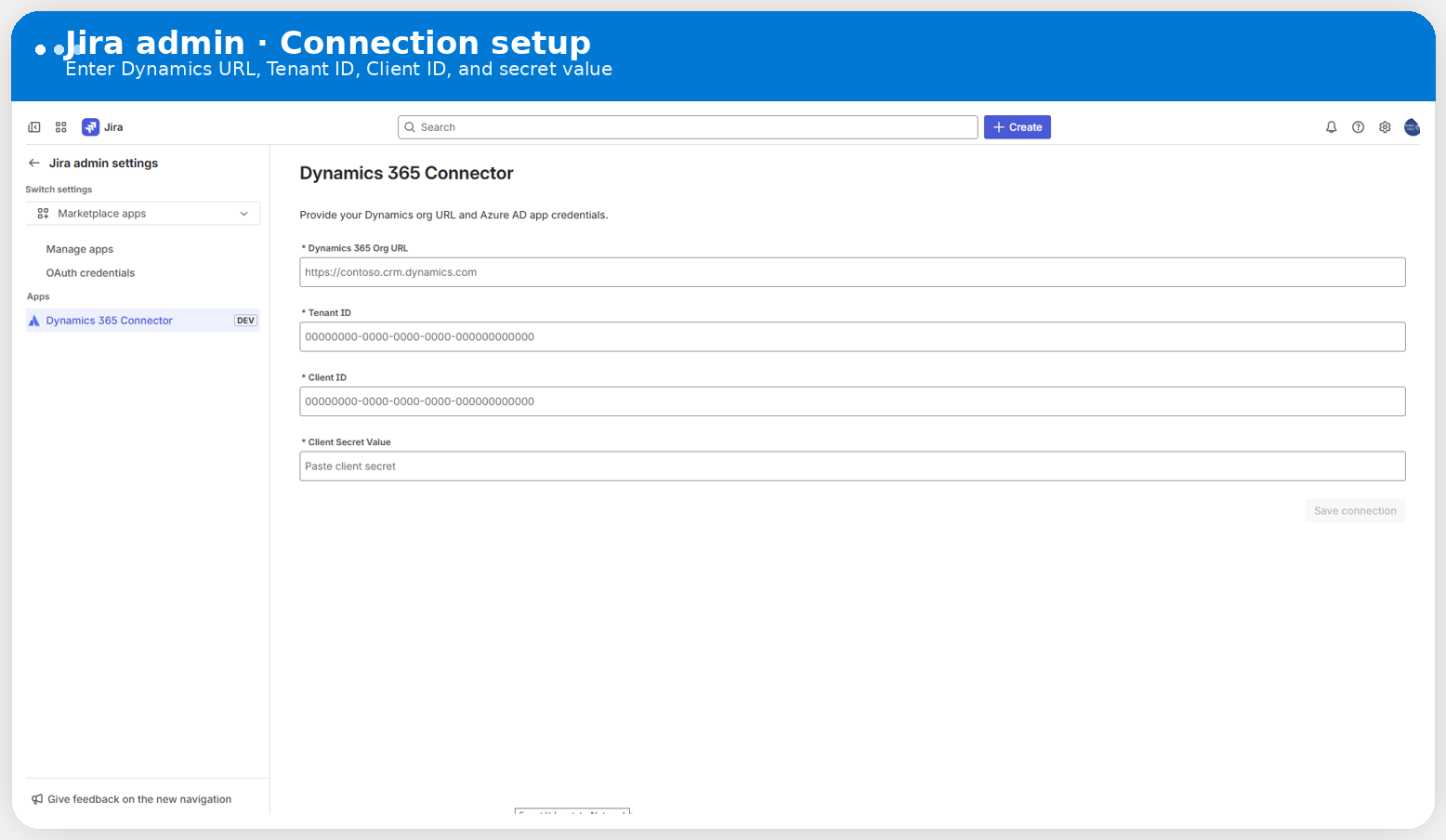
Real Jira admin screenshot of the connection setup form. This is the exact screen where the admin enters the Dynamics organization URL, Tenant ID, Client ID, and Client Secret Value.
Values to enter
- Organization URL: the Dataverse base URL, such as
https://org.crm.dynamics.com - Tenant ID: the Microsoft Entra directory identifier
- Client ID: the application identifier of the app registration
- Client Secret Value: the secret value copied when the secret was created
What the app does after saving
- Requests an OAuth token for the Dataverse organization.
- Discovers Dynamics modules and Dataverse entities that can be browsed in the admin page.
- Loads metadata so the admin can map Dynamics fields to Jira fields.
- Stores the connection settings for future scheduled sync and Jira event handlers.
Connection validation
If authentication fails, verify the organization URL first, then verify the tenant ID, client ID, and secret value. In practice, an incorrect URL or a copied secret ID is more common than a code problem.
Connector Configuration
Create Smart Connected Items
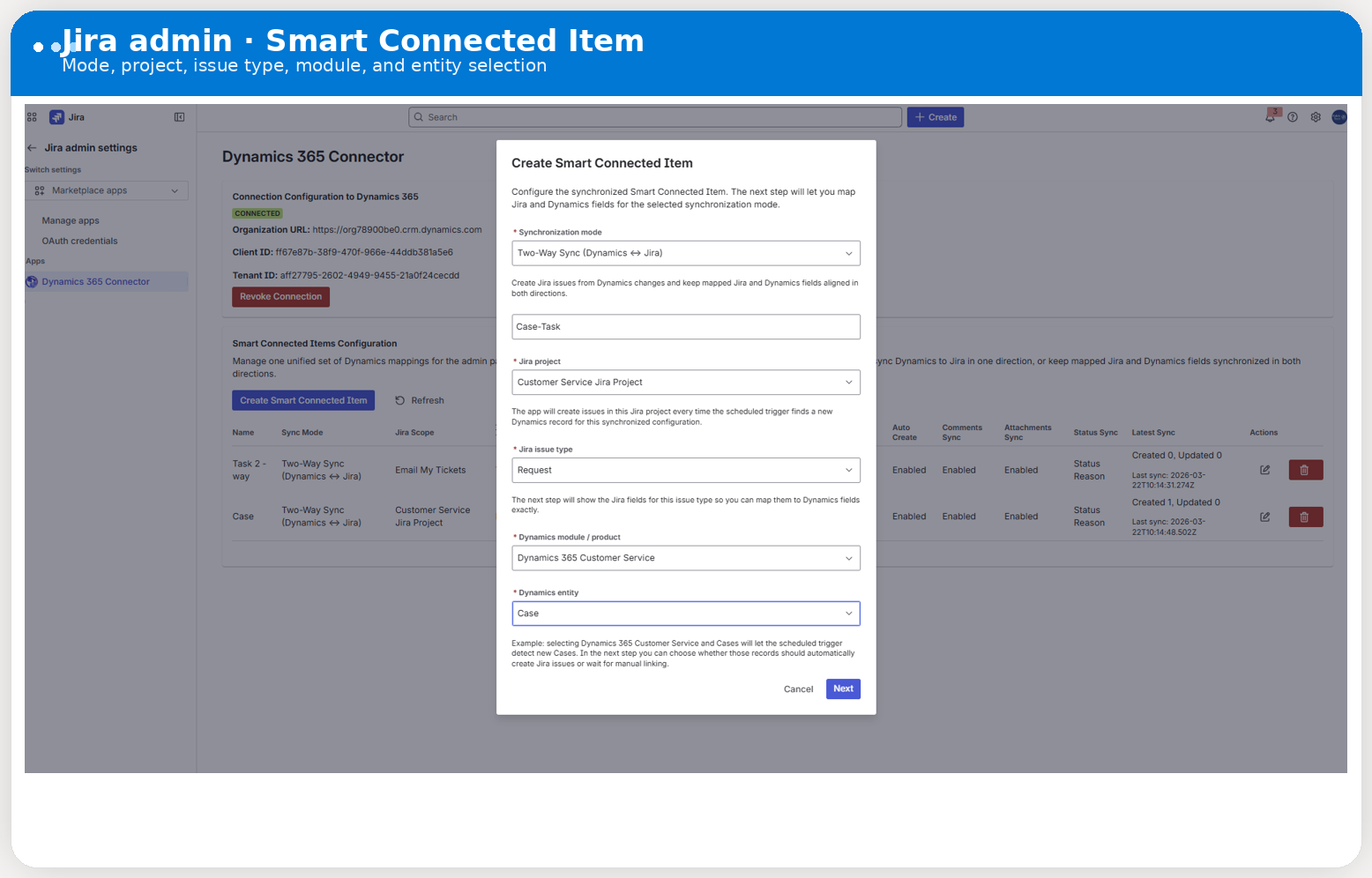
Real Jira admin screenshot of Smart Connected Item creation step 1. The admin chooses the synchronization mode, Jira scope, Dynamics module or product, and Dynamics entity before moving to the mapping step.
Display-only item
Use this when users only need to search and manually link a Dynamics record from Jira, then view selected fields in the issue panel. No automatic issue creation or scheduled field synchronization runs for this mode.
Synchronized item
Use this when one Jira project and one Jira issue type should be connected to one Dynamics module and one Dataverse entity. This path supports issue creation, field mappings, status sync, comment sync, and attachment sync depending on the options you enable.
Choose the sync mode
Select None (Display Only), One-Way Sync (Dynamics -> Jira), or Two-Way Sync (Dynamics <-> Jira).
Select the Jira side
Choose one Jira project and one Jira issue type. Synchronized items are intentionally scoped to one project and one issue type so the mapping behavior stays predictable.
Select the Dynamics side
Choose one Dynamics module or product area and one Dataverse entity, such as
Dynamics 365 Customer Service (Case) or Dynamics 365 Sales (Task).
Configure automation options
Decide whether the connector should auto-create Jira issues, synchronize mapped fields, synchronize status, synchronize comments, and synchronize attachments.
Connector Configuration
Modes and behavior matrix
| Capability | Display Only | One-Way Sync | Two-Way Sync |
|---|---|---|---|
| Manual search and link from the issue panel | Yes | Yes | Yes |
| Scheduled auto-create Jira issue from Dynamics | No | Optional | Optional |
| Dynamics -> Jira mapped field sync | No | Yes | Yes |
| Jira -> Dynamics mapped field sync | No | No | Yes |
| Status sync when enabled | No | Yes, both directions | Yes, both directions |
| Comments sync when enabled | No | Yes, both directions | Yes, both directions |
| Attachments sync when enabled | No | Yes, both directions | Yes, both directions |
Important behavior detail
Field mappings follow the one-way or two-way mode. Status, comments, and attachments are different: once those options are enabled for a synchronized item, the connector allows both-direction sync for those areas, with status using a most-recent-side-wins approach after link initialization.
Connector Configuration
Field mapping rules
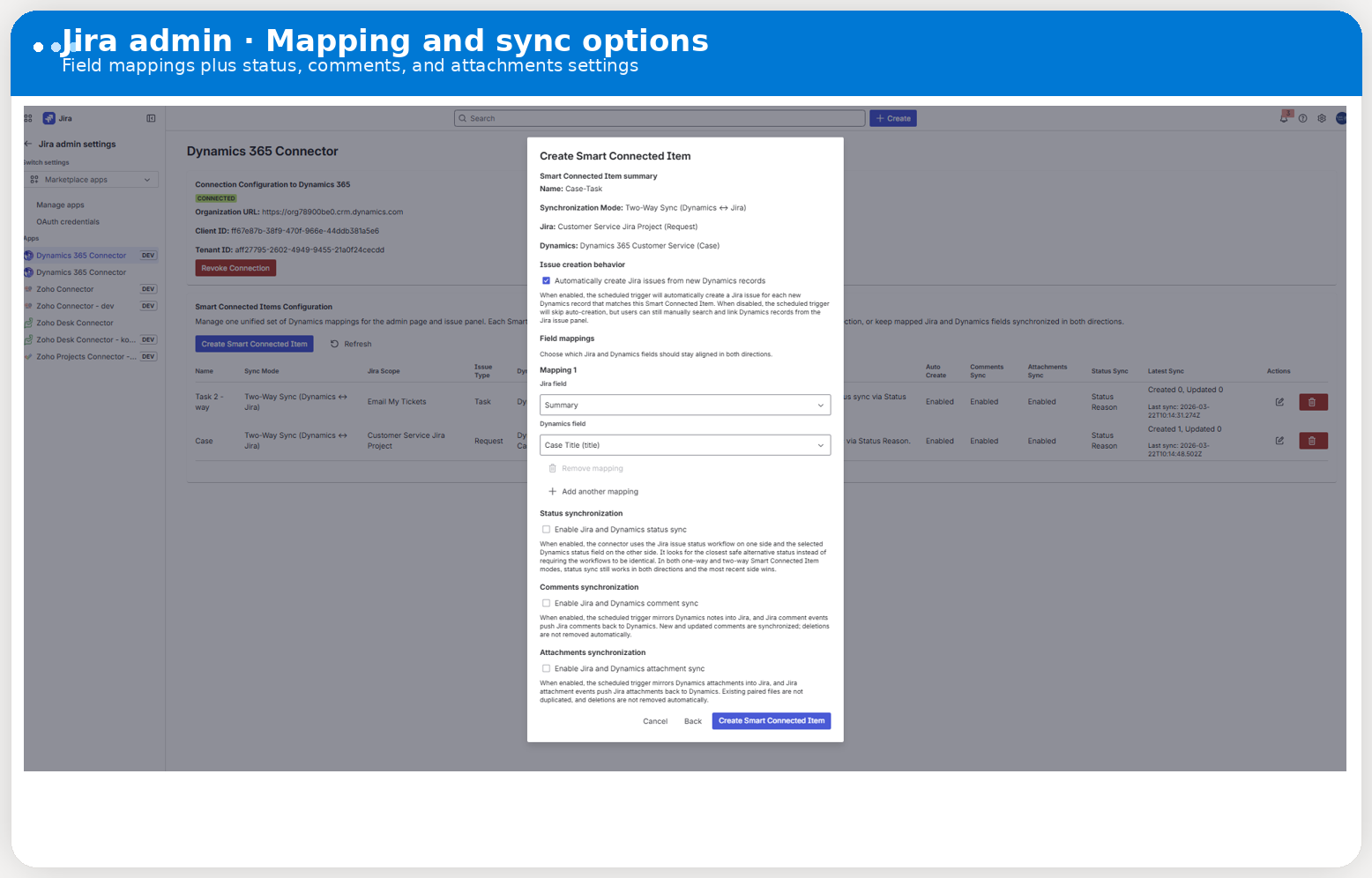
Real Jira admin screenshot of Smart Connected Item step 2. This is where the admin enables automatic issue creation, defines field mappings, and turns status, comments, and attachments sync on or off.
How mappings work
A mapping pairs one Dynamics field with one Jira field. In one-way mode the connector only writes from Dynamics to Jira. In two-way mode the connector also pushes Jira issue field changes back to Dynamics using Jira update events.
When mappings are optional
You can create a synchronized Smart Connected Item with no field mappings if the goal is status-only synchronization, comment-only synchronization, attachment-only synchronization, or manual linking without auto-create.
| Supported Jira field type | Examples | Notes |
|---|---|---|
| String | Summary, short text custom fields | Maps plain text values. |
| ADF / description | Description | Connector converts between Dataverse text and Jira rich text format. |
| Number | Numeric custom fields | Useful for quantities, estimates, counters, or score fields. |
| Date / date time | Due date, custom date fields | Validate time zone expectations before production rollout. |
| Boolean | Checkbox style fields | Stored as true or false. |
| String array | Labels | Supports multi-value text lists. |
| Priority | Issue priority | Requires sensible value matching between systems. |
| Option / option array | Select list fields | Used for single-select and multi-select option fields. |
| Component / version fields | Components, fix versions, affects versions | Supported where the Jira field type is implemented by the connector. |
Known unsupported pattern
Some Jira create fields can appear for reference in the admin experience even when the connector does not yet implement their sync behavior. User picker and user-array style mappings usually require extra identity matching logic and should be tested carefully before being promised to end users.
Connector Configuration
Status sync
How it behaves
When status sync is enabled, the connector compares Jira and Dynamics state changes and tries to match equivalent or near-equivalent statuses instead of requiring identical workflow names. After the initial baseline is established, the most recently changed side wins.
What makes it smart
The connector uses transition and label heuristics so a Jira issue moving to Done, Resolved, or Cancelled can still map to an appropriate Dynamics close state even when the names are not exact duplicates.
| Direction | How the connector writes the update | Notes |
|---|---|---|
| Dynamics -> Jira | Uses Jira transitions | The issue must have an available workflow transition to the target state. |
| Jira -> standard Dataverse entities | Updates the configured state or status field | Used for records that can be updated with a normal Dataverse write. |
Jira -> Dynamics Case (incident) |
Uses the dedicated case close or cancel action path | Cases are special because resolve and cancel are action-driven, not just a plain field update. |
Admin recommendation
Test a full status cycle with one sample record before rollout, especially for Cases in Customer Service. Closing a Case may require a valid resolution type and resolution text in the target environment.
Connector Configuration
Comments sync
Dynamics -> Jira
Scheduled sync reads eligible Dataverse notes and posts them into Jira as issue comments for linked records.
Jira -> Dynamics
Jira comment events create corresponding Dataverse notes so the connected Dynamics record timeline reflects the latest Jira discussion.
Connector-managed notes are excluded
The visible Jira link note that the connector creates in Dynamics is intentionally excluded from comment sync, so the app does not pollute Jira with system notes that only exist to show linkage.
Connector Configuration
Attachments sync
Dynamics -> Jira attachments
The scheduled sync can pull eligible note attachments from Dataverse and add them to the linked Jira issue.
Jira -> Dynamics attachments
Jira attachment creation events send new files to Dynamics so they appear on the connected record.
Attachment size limit
The current connector build skips files larger than 10 MB per attachment. This protects the integration from common runtime and payload limits.
Reference
Permission and scope reference
| Platform | Permission or scope | Purpose |
|---|---|---|
| Forge | storage:app |
Stores Dynamics connection settings, Smart Connected Items, and link registrations. |
| Forge | read:jira-work and read:issue:jira |
Reads issue data, issue fields, comments, transitions, and project context. |
| Forge | write:jira-work and write:issue:jira |
Creates issues, updates fields, transitions issues, posts comments, and uploads attachments. |
| Forge | read:jira-user |
Supports user-related Jira reads that the app needs during sync and panel rendering. |
| Dataverse | Custom application-user security role | Controls which entities, notes, files, and close actions the connector can perform. |
Security model summary
Jira permissions come from the Forge manifest and the app installation. Microsoft permissions come from the Dataverse application user and its assigned custom security role. That separation is important when you review audit, compliance, and least-privilege requirements.
Jira User Guide
Issue panel overview
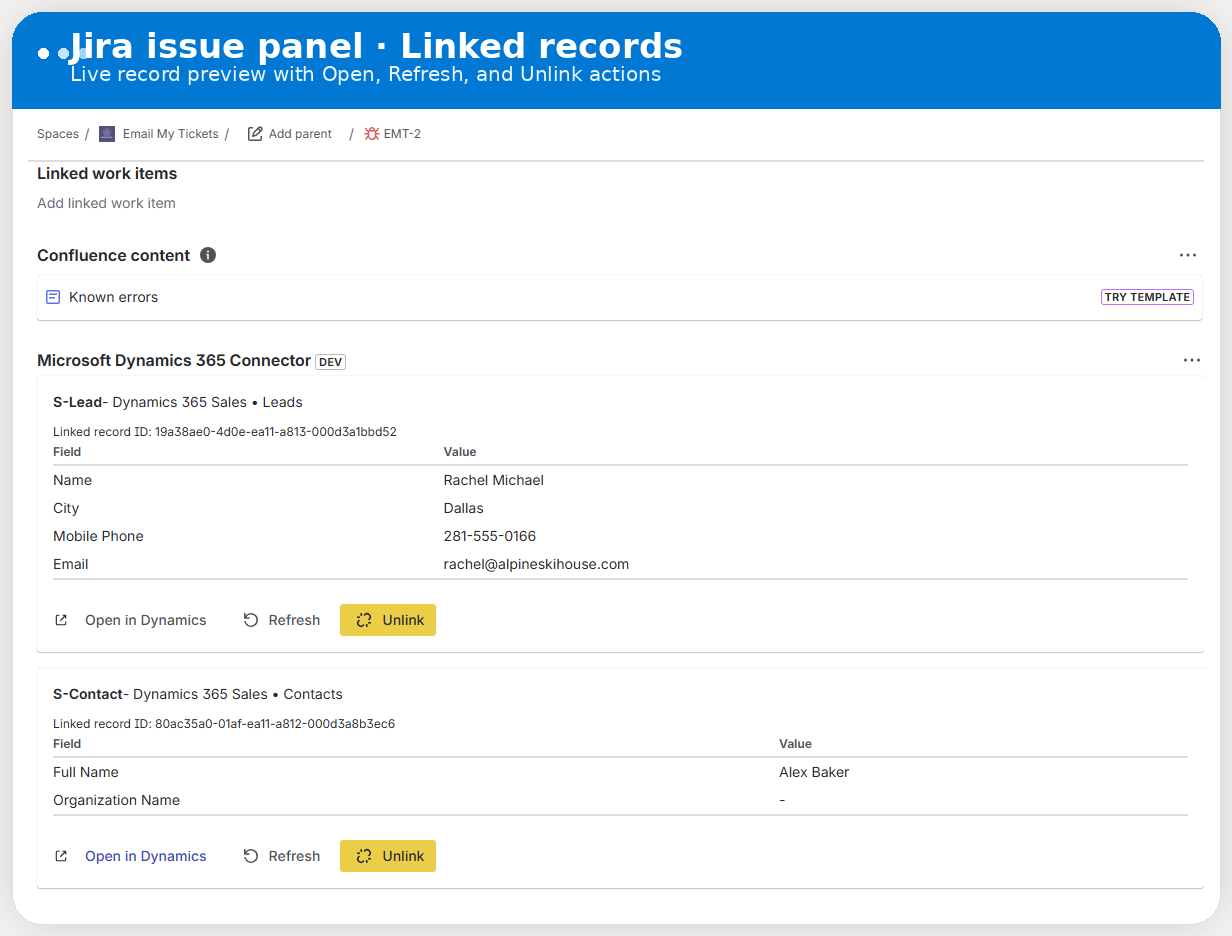
Real Jira issue panel screenshot showing linked Dynamics records, record details, and the user actions available in Jira for manual links.
What the user sees
- The Smart Connected Items available for the current Jira project.
- The linked Dynamics record preview when a record is already connected.
- An Open in Dynamics action that opens the source record directly.
- A status sync indicator when status synchronization is enabled for that item.
What determines visibility
The panel only shows Smart Connected Items that apply to the current Jira project. A synchronized item is project-scoped, so users do not see irrelevant connectors for unrelated projects.
Jira User Guide
Link, refresh, and unlink records
Search and link
When a Smart Connected Item allows manual selection, the user can search Dynamics records directly from the issue panel and connect the correct record to the current Jira issue.
Refresh
A manually linked record can be refreshed from the panel to pull the latest visible Dynamics data into Jira without waiting for the next scheduled cycle.
Unlink
A manual link can be removed from the panel. The connector then deletes its stored link reference and also attempts to remove the connector-managed Jira link note from Dynamics.
What unlink does not do
Unlinking removes the connector relationship. It does not delete the Jira issue and it does not delete the Dynamics business record itself.
Jira User Guide
Auto-managed links
When they appear
Auto-managed links appear when a synchronized Smart Connected Item has auto-create enabled and the scheduled connector creates a Jira issue for a new Dynamics record.
Why the panel treats them differently
These links are owned by the automation layer. Users can open the Dynamics record, but they cannot manually replace or unlink the record from the issue panel.
Jira User Guide
What changes in Dynamics when Jira users work in Jira
| Jira action | Dynamics effect | Condition |
|---|---|---|
| Edit a mapped issue field | Updates the mapped Dataverse field | Only for two-way synchronized items with a link in place |
| Change issue status | Updates or closes the Dynamics record status | Status sync must be enabled |
| Add a Jira comment | Creates a Dataverse note | Comments sync must be enabled |
| Add a Jira attachment | Creates a Dataverse attachment-backed note | Attachments sync must be enabled and the file must be within size limits |
Jira User Guide
Visible Jira link note in Dynamics
What the connector writes
The connector creates or updates a dedicated Dataverse note that clearly states the record is linked to a Jira issue. The note includes the Jira key, Jira URL, issue ID, Smart Connected Item name, and whether the link was created automatically or manually.
Why it exists
This gives Dynamics users an immediate visual signal in the record timeline without requiring a custom Dataverse table, custom form field, or manual admin customization in the target environment.
Important limitation
The note is a visibility flag, not the connector's master source of truth. The real link state is still tracked by the app configuration and link storage on the Forge side.
Operations
Troubleshooting guide
The Jira admin page cannot authenticate to Dynamics
Verify the Dataverse organization URL, Tenant ID, Client ID, and Client Secret Value. Confirm that the app registration exists in the same tenant and that the Dataverse environment contains an application user for that registration.
Smart Connected Items load, but no Jira issues are auto-created
Confirm the item is synchronized, auto-create is enabled, and the target Dynamics records were created after the monitoring baseline was established. Also verify that the mapped Jira issue type can be created with the fields currently configured.
Fields or status changes from Dynamics take time to appear in Jira
Dynamics -> Jira updates are scheduled, not real-time. The scheduled trigger runs every five minutes, so changes can appear on the next cycle instead of instantly.
Jira comments or attachments are not appearing in Dynamics
Confirm that the relevant sync option is enabled, the issue is linked to a supported synchronized item, and the Dataverse application user can create notes and attachments on the target record type.
Closing a Jira issue does not resolve the Dynamics Case
Validate the linked entity is really incident, that status sync is enabled, and that
the Dataverse security role allows Case close operations. Also test whether the Dynamics environment
requires a specific resolution type or resolution text for Case closure.
Operations
Known limits in this connector build
Scheduled Dynamics polling
Dynamics -> Jira updates and auto-create rely on a five-minute scheduled trigger, so those changes are not instant.
10 MB attachment ceiling
Attachments larger than 10 MB are intentionally skipped.
No delete mirroring
Comment deletions and attachment deletions are not mirrored between Jira and Dynamics in this build.
Synchronized item scope
Each synchronized Smart Connected Item maps one Jira project and one Jira issue type to one Dynamics module and one Dataverse entity.
Some Jira field types remain unsupported
Certain complex Jira field types, especially identity-driven user fields, may still require future implementation work or environment-specific testing.
Dynamics link note is informational
The visible Jira link note is not the underlying relationship store. It is a user-facing marker.
Operations
Official references
Microsoft Dynamics 365 Connector for Jira on Atlassian Marketplace
Atlassian Forge Jira events reference
Atlassian Forge manifest reference
Atlassian app management reference
Microsoft Learn: server-to-server authentication for Dataverse
Microsoft Learn: manage Dataverse application users
Microsoft Learn: privileges required for customization
Microsoft Learn: Incident (Case) entity reference
Microsoft Learn: IncidentResolution entity reference