Background runs pull eligible HubSpot updates into Jira on a fixed cadence.
Documentation validated against connector build on April 6, 2026
Technical deployment guide for the HubSpot Connector for Jira
This guide covers installation, HubSpot private app authentication, Smart Connected Items, sync behavior, and issue-panel operations for enterprise Jira deployments.
Marketplace app
Forge app
Jira admin page
HubSpot CRM
Issue, comment, and attachment events push qualifying changes back to HubSpot.
Larger files are skipped to stay inside platform runtime and payload boundaries.
Standard objects are curated and custom objects are discovered from the connected portal.
Fast Path
Deployment quick start in six steps
Install the app
A Jira site admin installs the app from Atlassian Marketplace and opens the HubSpot Connector admin page from Jira administration.
Create a HubSpot private app
In HubSpot, create a private app for this integration and grant the CRM, notes, and files permissions your team needs.
Gather the Hub ID and token
Copy the HubSpot portal ID and the private app token. You will enter both into the Jira admin page connection form.
Save the HubSpot connection
Enter the HubSpot Portal ID and Private App Token, then save the connection. The token is stored securely in Forge storage.
Create Smart Connected Items
Choose display-only, one-way sync, or two-way sync behavior, then set Jira scope, HubSpot object, field mappings, and optional sync features.
Link or auto-create records
Jira users can link HubSpot records from the issue panel, and synchronized items can optionally auto-create Jira issues from new HubSpot records.
Architecture
How the connector works
Current sync model in this build
The scheduled trigger runs every five minutes. It can create Jira issues for new HubSpot records when auto-create is enabled, and it applies HubSpot-to-Jira updates for fields, status, comments, and attachments on linked records.
Jira-to-HubSpot updates are event-driven. Jira issue updates push field and status changes, Jira comment events push comments, and Jira attachment events push new files to HubSpot.
Where configuration lives
- HubSpot connection settings are stored in Forge app storage.
- The private app token is stored in Forge secret storage when available.
- Smart Connected Item definitions and issue-to-record links are stored in Forge app storage.
- Paid environments are license-gated, while development installs bypass Marketplace license checks.
How Jira users see the integration
- The issue panel shows one card per Smart Connected Item that applies to the Jira project.
- Display-only items wait for a manual link before showing HubSpot fields.
- Synchronized items can either be manually linked or auto-managed by the scheduler.
- Linked records can expose field previews, a direct HubSpot link, refresh, and unlink actions.
Object Catalog
Supported HubSpot objects in this connector
| Module / object group | Objects exposed by the connector | Notes |
|---|---|---|
| HubSpot CRM | Contacts, Companies, Deals, Tickets, Products, Line Items, Quotes, Leads | These are the most common CRM records for display-only, one-way, and two-way flows. |
| HubSpot Activities | Notes, Meetings, Calls, Emails, Tasks, Appointments | Useful when Jira issues need to reference or sync activity-oriented records. |
| HubSpot Commerce | Invoices, Orders, Payments, Subscriptions | Available when the connected token can read those commerce objects. |
| HubSpot Operations | Projects, Services, Listings | Operations objects are included in the curated connector catalog. |
| HubSpot Marketing | Marketing Events | Marketing records can be targeted the same way as other supported HubSpot objects. |
| Custom objects | Live HubSpot custom object schemas discovered from the portal | The available list depends on the connected HubSpot account and the private app token scopes. |
What admins should expect
The connector combines a curated default catalog with live metadata. That means standard objects stay predictable, while custom objects can still appear automatically when HubSpot exposes them to the connected token.
Terminology
Key terms used in this guide
Display-only Smart Connected Item
A manual mapping that lets Jira users link a HubSpot record in the issue panel and view selected fields. It does not auto-create Jira issues or run scheduled field sync.
Synchronized Smart Connected Item
A one-project, one-issue-type mapping that can create Jira issues from HubSpot and keep mapped fields aligned in one direction or both directions.
Auto-managed link
A record link created by the scheduler when auto-create is enabled. Auto-managed records are read-only in the issue panel and can be refreshed but not manually unlinked there.
HubSpot status field
A field detected from HubSpot metadata that behaves like a stage or status. Status sync relies on one of these fields when the chosen object exposes one.
Admin Setup
Install from Atlassian Marketplace
Install the app on the Jira Cloud site
Install the HubSpot Connector from Atlassian Marketplace using a Jira site admin account. After installation, open Jira administration and locate the app under the Marketplace apps area.
Confirm the license state
Paid and trial environments must have an active Marketplace license. If the license is missing or expired, both the admin page and the issue panel will show a license-required message and block normal usage.
Prepare HubSpot credentials before the first save
The app will not let you complete setup until you provide a valid HubSpot Portal ID and private app token, so create the private app first and keep both values ready.
HubSpot
Create the HubSpot private app
Connection help shown inside Jira
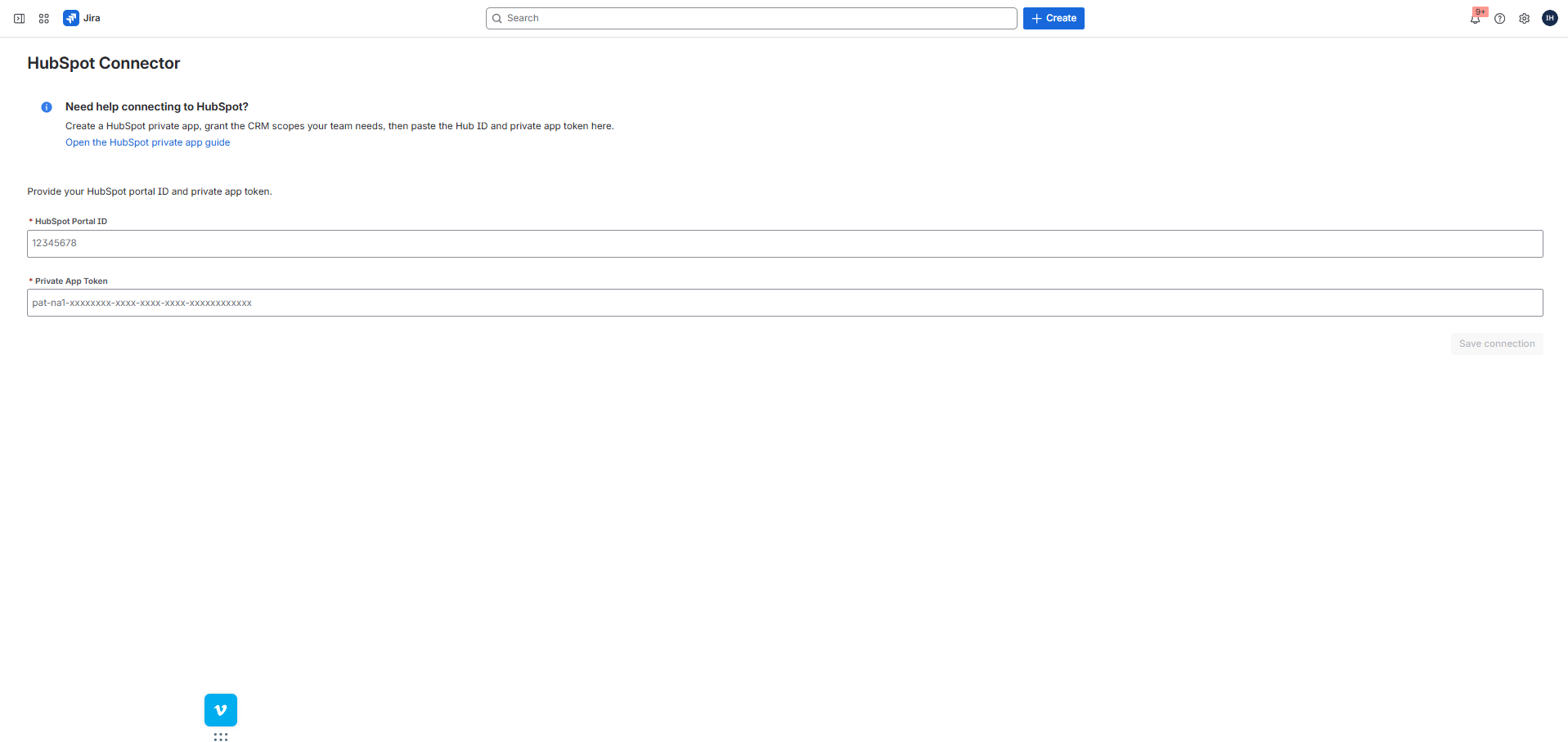
While the app is not connected, the Jira admin page shows a helper message titled Need help connecting to HubSpot? with a link to the HubSpot private app guide.
Create a private app in HubSpot
Create a private app in the target HubSpot account. This token is the app's single authentication secret for all object, notes, and files access.
Add the scopes your use case needs
Grant access to every HubSpot object family you plan to expose in Smart Connected Items. If you want comment sync or attachment sync, the token must also have the HubSpot permissions needed for notes and files operations.
Copy the Hub ID and token
Save the HubSpot portal ID and the generated private app token. You will use both values in the Jira admin page. The app validates that the entered portal ID matches the Hub ID returned by the token.
Important validation behavior
If the token lacks access to an object, HubSpot usually returns a 403 error that names one or more required scopes. The connector turns that into a Jira-friendly message that tells the admin exactly which HubSpot scopes to add before reconnecting.
Jira Admin
Authenticate in the Jira admin page
Connection form fields
- HubSpot Portal ID: numeric Hub ID, for example
12345678. - Private App Token: password-style field, for example
pat-na1-.... - Save connection: validates the token and stores it securely.
Connected-state summary
- Connection Configuration to HubSpot heading.
- Connected lozenge.
- Portal ID, Private App ID, and a stored-securely token indicator.
- Revoke Connection button to disconnect the portal.
Validation cases called out by the app
The connector rejects empty tokens, mismatched portal IDs, and invalid HubSpot
credential responses. It also includes a specific recovery message for certain
pat-eu1- tokens that return a HubSpot 404 during validation.
Core Configuration
Create Smart Connected Items
Smart Connected Items are the core configuration objects for this connector. The admin dashboard shows a single table with these columns:
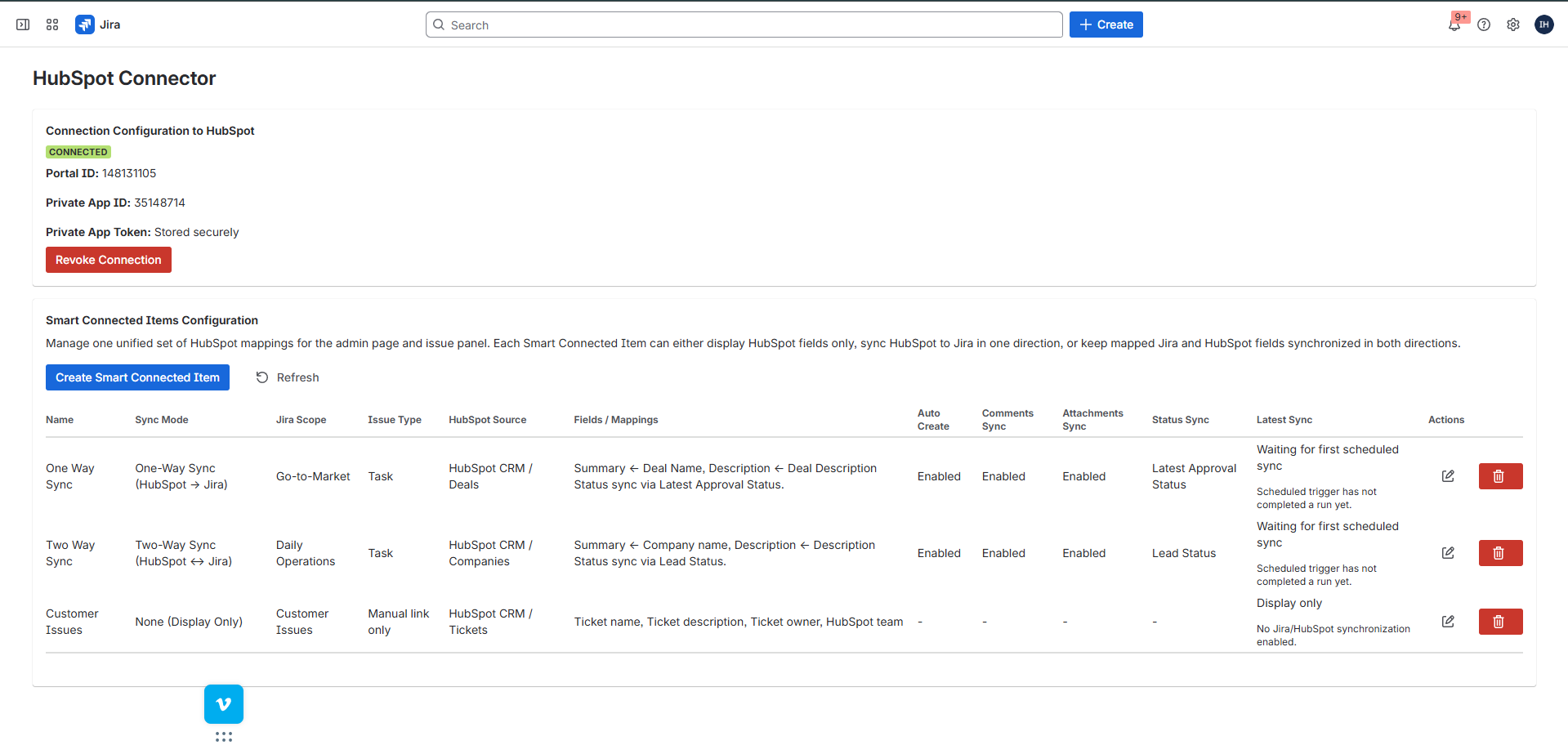
Entry point
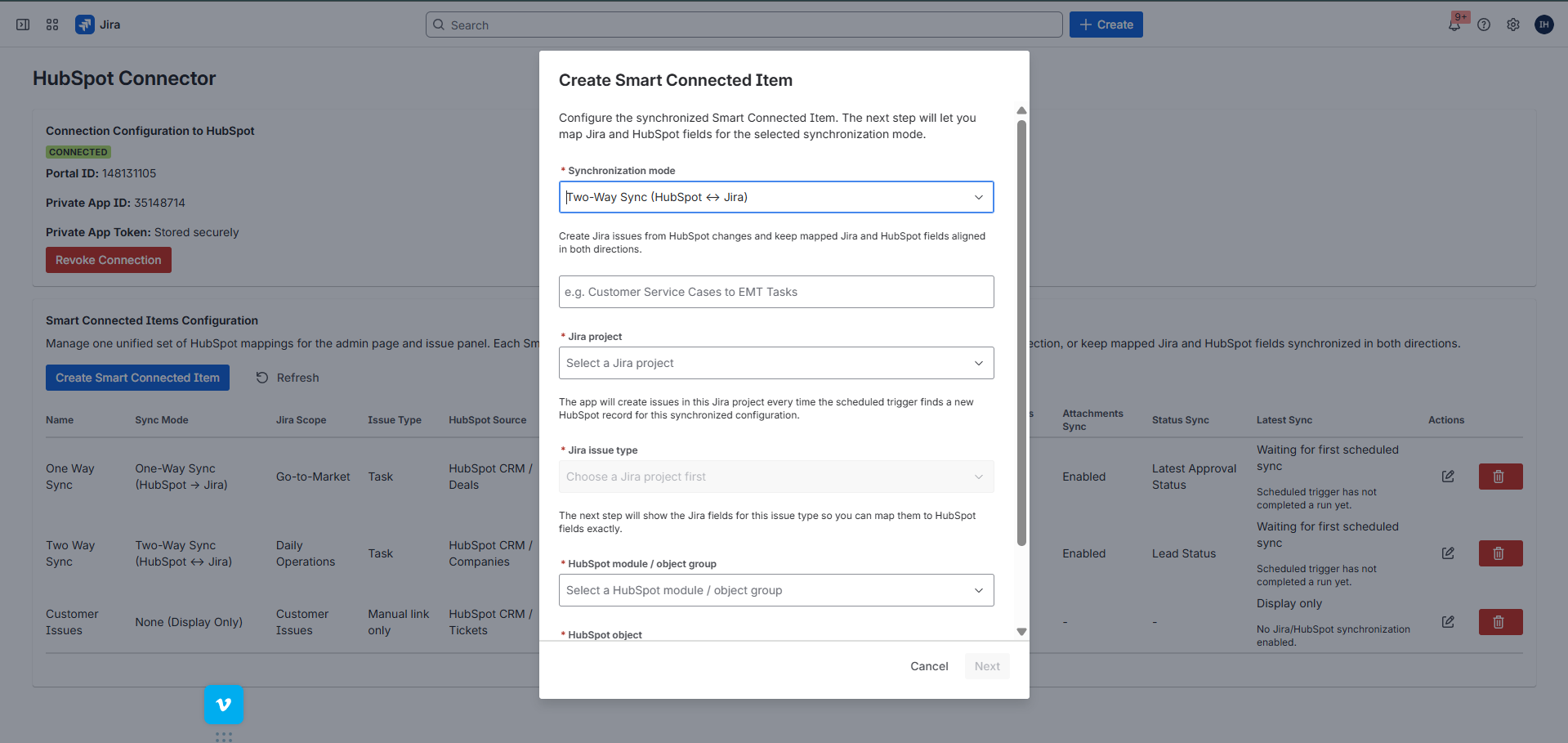
From the dashboard, admins use Create Smart Connected Item and first choose the synchronization mode. The modal then switches into the correct flow for either display-only or synchronized setup.
Display-only Mode
Configure display-only Smart Connected Items
Choose the None mode
This flow is used when the issue panel should only display selected HubSpot fields for a record after a Jira user manually links it.
Set the display name and Jira projects
Display-only items can target multiple Jira projects. The admin chooses every project that should use the same HubSpot object and field preview.
Select the HubSpot module / object group and object
The object list is loaded from HubSpot metadata for the selected module. Once the object is chosen, the field selector loads the full live property metadata.
Choose the fields to display in the issue panel
The admin selects one or more HubSpot fields. Jira users will see those values in the issue panel after they link a record.
Synchronized Modes
Configure one-way and two-way Smart Connected Items
Step 1: choose the basics
- Display name.
- Synchronization mode.
- Target Jira project.
- Target Jira issue type.
- HubSpot module / object group.
- HubSpot object.
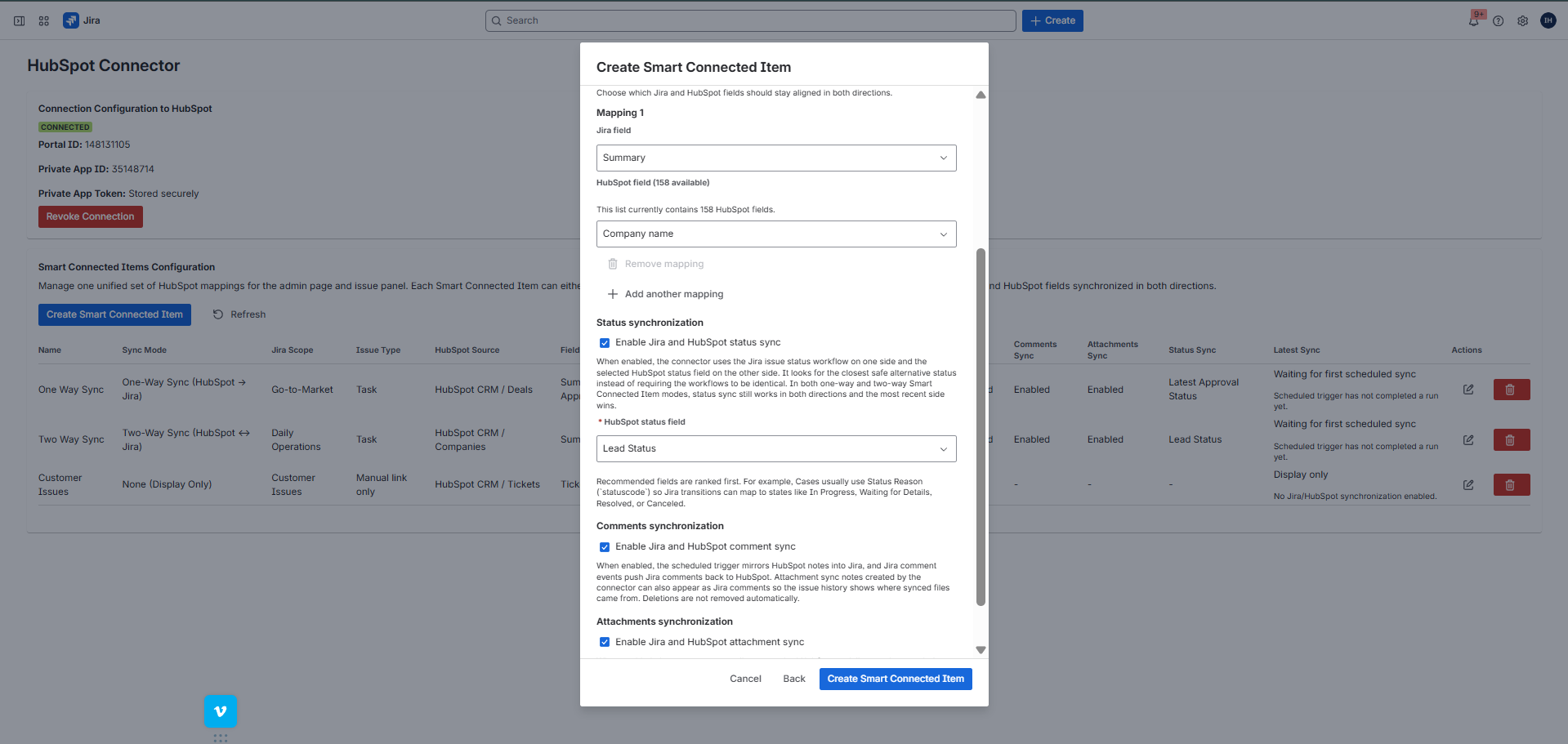
Step 2: choose sync behavior
- Auto-create Jira issues from new HubSpot records.
- Field mappings between Jira and HubSpot.
- Status sync.
- Comments sync.
- Attachments sync.
What the mode names mean in the UI
One-Way Sync (HubSpot -> Jira) keeps HubSpot as the source of truth for mapped fields. Two-Way Sync (HubSpot <-> Jira) keeps mapped fields aligned in both directions.
Save-time validation
The app blocks save when required Jira fields are still unmapped, when a Jira field is mapped more than once, or when the selected Jira field types are not yet safe for the scheduled sync to transform.
Behavior Matrix
Sync options matrix
| Option | What it does | Important notes |
|---|---|---|
| Automatically create Jira issues from new HubSpot records | Lets the scheduled trigger create new Jira issues for records that match the Smart Connected Item. | When off, users can still manually search and link records from the issue panel. |
| Field mappings | Defines how HubSpot properties populate Jira issue fields, or which fields stay aligned both ways in two-way mode. | Each Jira field can only be mapped once. |
| Status sync | Aligns Jira workflow status with a detected HubSpot status-like field. | Even when the Smart Connected Item is one-way, status sync still behaves bidirectionally and the newest side wins. |
| Comments sync | Mirrors HubSpot notes into Jira and pushes Jira comments back to HubSpot. | Deletions are not removed automatically. |
| Attachments sync | Reconciles unmatched Jira and HubSpot attachments during scheduled sync, manual linking, and manual refresh. | Jira attachment events push new files quickly, connector-managed Jira comments are added for synced files, and files over 10 MB are skipped. |
Permissions
Permissions and scope reference
Forge scopes in the manifest
storage:appread:jira-workwrite:jira-workread:jira-userread:issue:jirawrite:issue:jira
HubSpot private app scope guidance
- Add object scopes for every HubSpot object family you plan to configure.
- Enable notes access if comments sync is required.
- Enable files access if attachment sync is required.
- If a scope is missing, the connector surfaces the exact HubSpot scope names returned by the API.
Jira User Guide
Issue panel overview
Before the app is usable
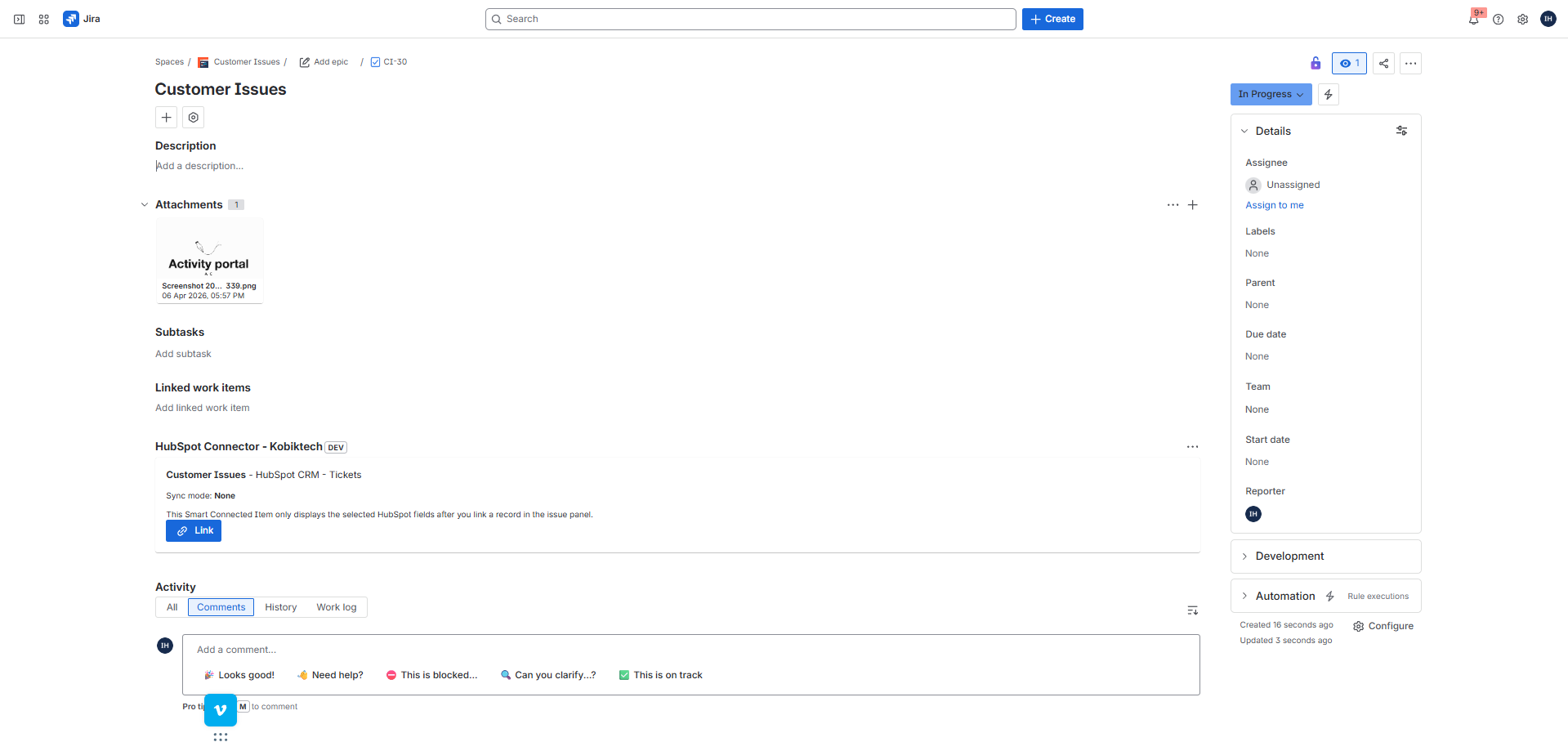
The issue panel can show License required, HubSpot connection not configured, or No Smart Connected Items for this project depending on the current admin setup state.
What a Smart Connected Item card shows
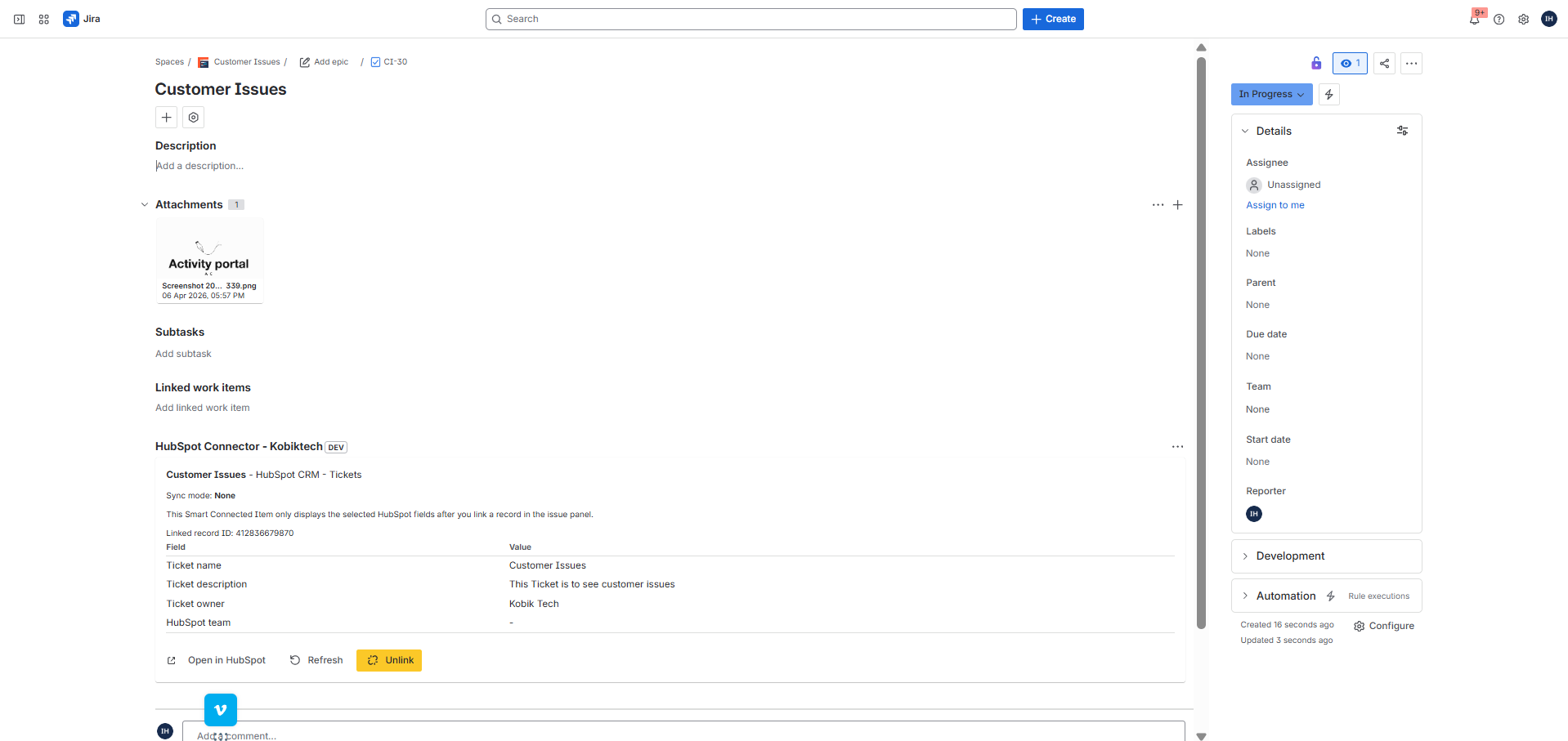
Each card shows the Smart Connected Item name, HubSpot module, HubSpot object, sync mode, status-sync indicator when relevant, and either a linked record preview table or a link button when no record is linked yet.
What appears for linked records
When a record is linked, the card shows the linked record ID, a preview table of the selected or mapped fields, an Open in HubSpot action, a Refresh action, and an Unlink action when the link is manually managed.
Manual Flow
Link, refresh, and unlink
Click Link on the issue-panel card
The modal title is Link a HubSpot record. It prompts the user to enter the record ID for the selected HubSpot module and object.
Search by name or title
The modal includes a field labeled Search by name/title with the
placeholder Start typing to search HubSpot records. Matching records
appear as selectable results.
Use Refresh for an immediate pull
Refresh pulls HubSpot data into Jira right away instead of waiting for the next five-minute scheduled run. This is useful after editing the record in HubSpot.
Use Unlink only on manual links
The Unlink action appears only for manually managed links. Auto-managed links created by the scheduler stay read-only in the issue panel.
Scheduled Flow
Auto-managed links created by the scheduler
How the issue panel describes auto-managed records
When a Jira issue was linked automatically by a synchronized Smart Connected Item, the issue panel explains that the linked HubSpot record is read-only there and can still be refreshed without waiting for the next scheduled run.
When auto-managed links happen
- Only synchronized Smart Connected Items can auto-create Jira issues.
- The auto-create checkbox must be enabled.
- The selected Jira issue type must have enough supported mappings to create issues safely.
What users can still do
- Open the linked HubSpot record.
- Refresh the preview.
- Review mapped field values and status information.
- See comments and attachment effects as they sync over time.
HubSpot Effects
What changes in HubSpot after linking
Field updates
One-way mode applies HubSpot changes to Jira. Two-way mode also allows Jira issue updates to flow back to the linked HubSpot object.
Status changes
When status sync is enabled and the object exposes a suitable HubSpot status field, Jira transitions and HubSpot status changes can update each other.
Comments via HubSpot notes
HubSpot notes are the connector's persistence model for synced comments. Jira comments can create or update connector-managed notes in HubSpot.
Attachments via HubSpot files and notes
Files are uploaded to HubSpot and associated through notes. The connector also adds Jira-side evidence so users can see where synced files came from.
Traceability
Connector-managed HubSpot notes
| Note type | Connector marker text | Purpose |
|---|---|---|
| Issue link note | [HubSpot Connector for Jira] Issue link note |
Marks the relationship between a HubSpot record and a Jira issue. |
| Comment sync note | [HubSpot Connector for Jira] Comment sync note |
Tracks Jira comments that have been mirrored into HubSpot. |
| Jira attachment sync note | [HubSpot Connector for Jira] Jira attachment sync note |
Tracks Jira files that were uploaded and associated in HubSpot. |
Operations
Troubleshooting
The connection cannot be saved
Check that the HubSpot Portal ID matches the Hub ID behind the private app token.
If the token is an EU token starting with pat-eu1- and validation
still fails, rotate the token and try again. Also verify the Marketplace license is active.
Objects or fields do not appear in the selector
The selected token may not have access to that HubSpot object family, or the portal may not expose metadata for it. Custom-object availability depends on live HubSpot schema discovery and the token's permissions.
Auto-create is enabled but Jira issues are not being created
The chosen issue type may still require unmapped Jira fields, or the mapping may include unsupported Jira field types. The scheduled trigger also runs every five minutes, so new records are not created instantly.
Comments, status, or attachments are not syncing
Confirm that the corresponding sync checkbox is enabled on the Smart Connected Item, that the token has the required HubSpot scopes, and that the chosen object exposes a usable status field when status sync is expected.
Files or comments were deleted on one side but still appear on the other
This is expected in the current build. Comment deletions and attachment deletions are not removed automatically by the connector after they have already synced.
Known Limits
Current limitations and operational notes
Functional limits
- Display-only Smart Connected Items do not run scheduled synchronization.
- Attachment sync skips files over 10 MB.
- Status sync requires a detectable HubSpot status-like field.
- Comment and attachment deletions are not mirrored automatically.
Operational limits
- Auto-create is only available for synchronized items.
- Object and field availability depends on HubSpot permissions and portal metadata.
- Outside development installs, an active Marketplace license is required.
- Auto-managed issue-panel links are intentionally read-only.
References