Per-user sign-in is supported, and shared app auth enables automation.
Technical documentation aligned with the shared Kobik Tech docs shell
Deploy, configure, and operate Zoho CRM Connector for Jira
This guide covers the current Forge implementation, including authentication modes, Smart Connected Items, scheduled CRM polling, Jira push events, and the linked-record workflow inside the Jira issue panel.
Forge app
Jira admin page
Jira issue panel
Zoho CRM
Scheduled CRM polling and optional auto-create only run with App OAuth 2.0.
Eligible Jira changes can push back into Zoho CRM when app auth is active.
The current scheduler can discover records across the connector's polling set.
Fast Path
Quick start in six steps
Install the app
Install the connector from Atlassian Marketplace and open the Jira admin page.
Choose the auth mode
Use Providers for per-user sign-in, or App OAuth 2.0 for shared automation.
Connect Zoho CRM
Select the Zoho CRM data center and complete the selected connection flow.
Create Smart Connected Items
Define the Jira scope, Zoho CRM module, and sync mode you want to support.
Enable sync features
Turn on auto-create, status sync, CRM notes sync, and attachment sync where needed.
Use the issue panel
Link records, preview mapped data, refresh linked items, open in Zoho, and unlink manual links.
Authentication
Choose the auth mode that fits your rollout
Providers
Best when each Jira user should connect with their own Zoho CRM account from the issue panel.
- Per-user Zoho CRM login.
- Good for manual linking and user-by-user access.
- Background automation does not run in this mode.
App OAuth 2.0
Stores a shared Zoho CRM token for the app and unlocks the scheduler and Jira push events.
- Required for auto-create, status sync, CRM notes sync, and attachment sync.
- Users are not prompted to sign in from the issue panel.
- Supports scheduled CRM polling every five minutes.
Switching modes does not remove Smart Connected Items
The admin page only clears stored authentication state when you switch modes. Smart Connected Items and linked records stay in place.
Jira Admin
Connect in the Jira admin page
Connection details tab
- Zoho CRM data center: US, EU, IN, AU, JP, CN, UK, CA, or SA.
- Providers: connect or switch the per-user provider auth state.
- App OAuth 2.0: supply Client ID, Client Secret, and Code.
- Mode switching: changes auth state only and does not remove Smart Connected Items.
Connected-state summary
- Current mode summary card for Providers or App OAuth 2.0.
- Zoho CRM data center summary card.
- Automation summary card for the active setup.
- App auth also shows the active API domain used by the saved connection.
Background automation requires App OAuth 2.0
Provider mode supports per-user Zoho CRM logins in the issue panel, but the five-minute scheduler, Jira issue/comment/attachment triggers, auto-create, CRM notes sync, and attachment sync only run when App OAuth 2.0 is active.
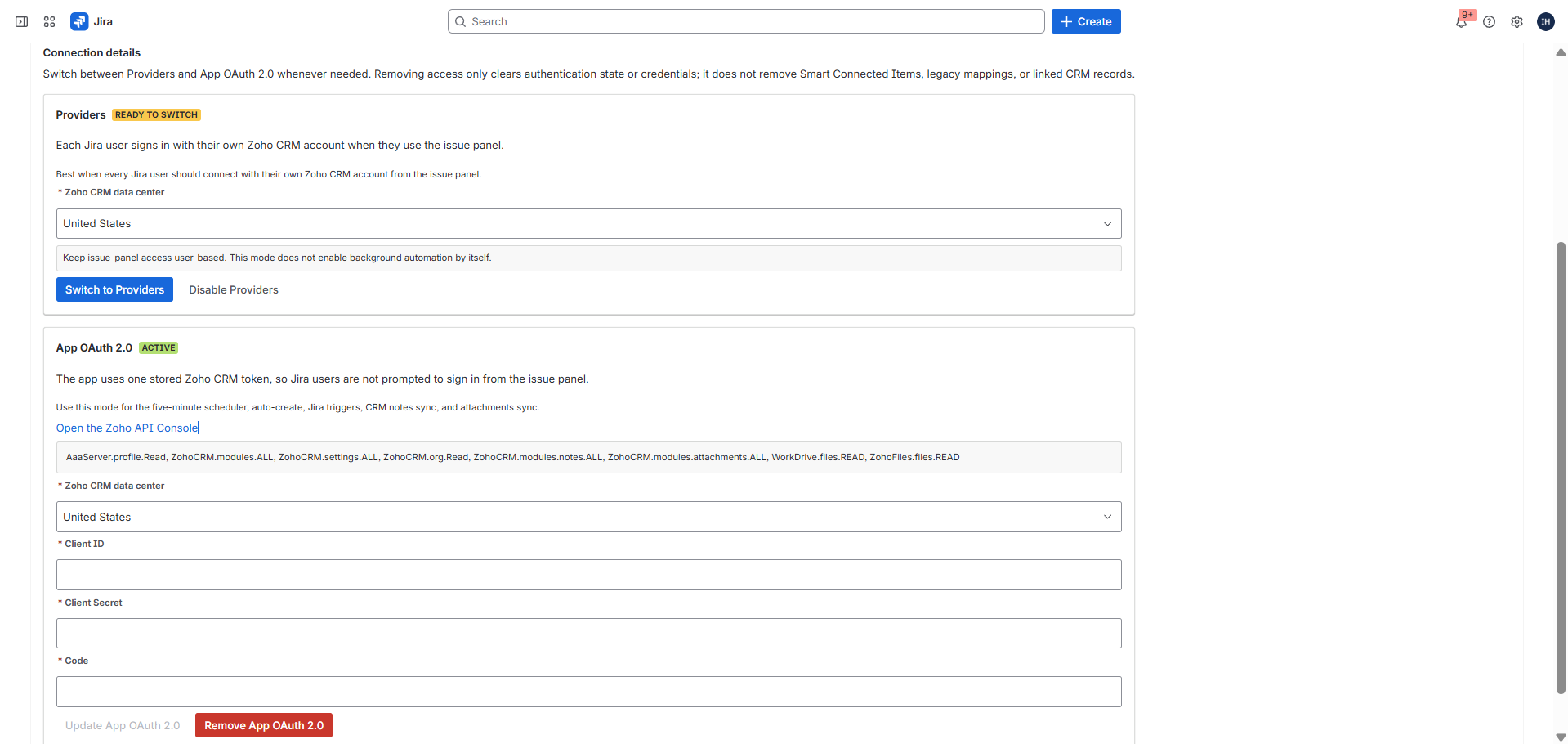
Required OAuth scopes
AaaServer.profile.Read,
ZohoCRM.modules.ALL,
ZohoCRM.settings.ALL,
ZohoCRM.org.Read,
ZohoCRM.modules.notes.ALL,
ZohoCRM.modules.attachments.ALL,
WorkDrive.files.READ,
ZohoFiles.files.READ
Use the Zoho API Console
Open the Zoho API Console to create the client, generate the code, and paste the values into Jira.
Core Configuration
Create Smart Connected Items
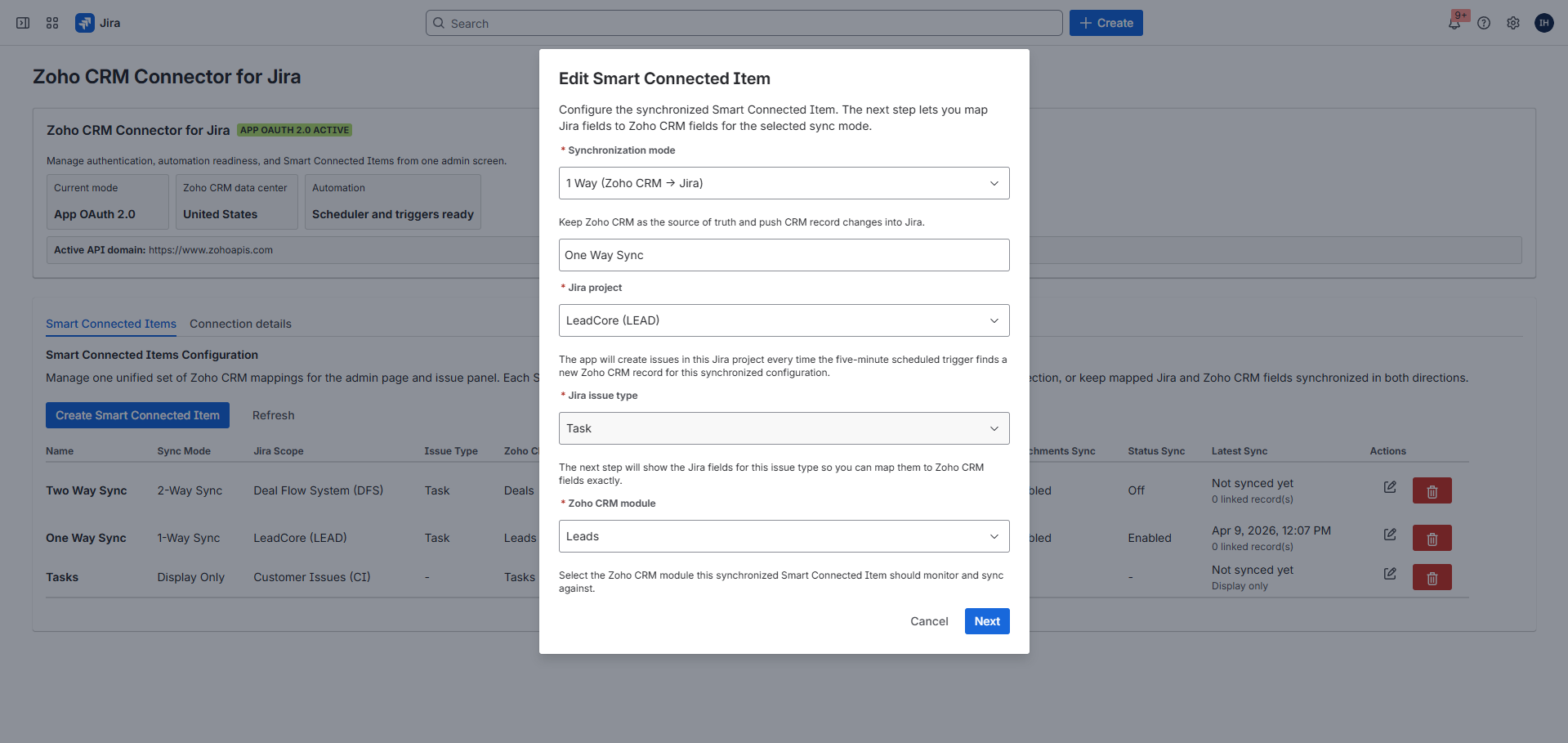
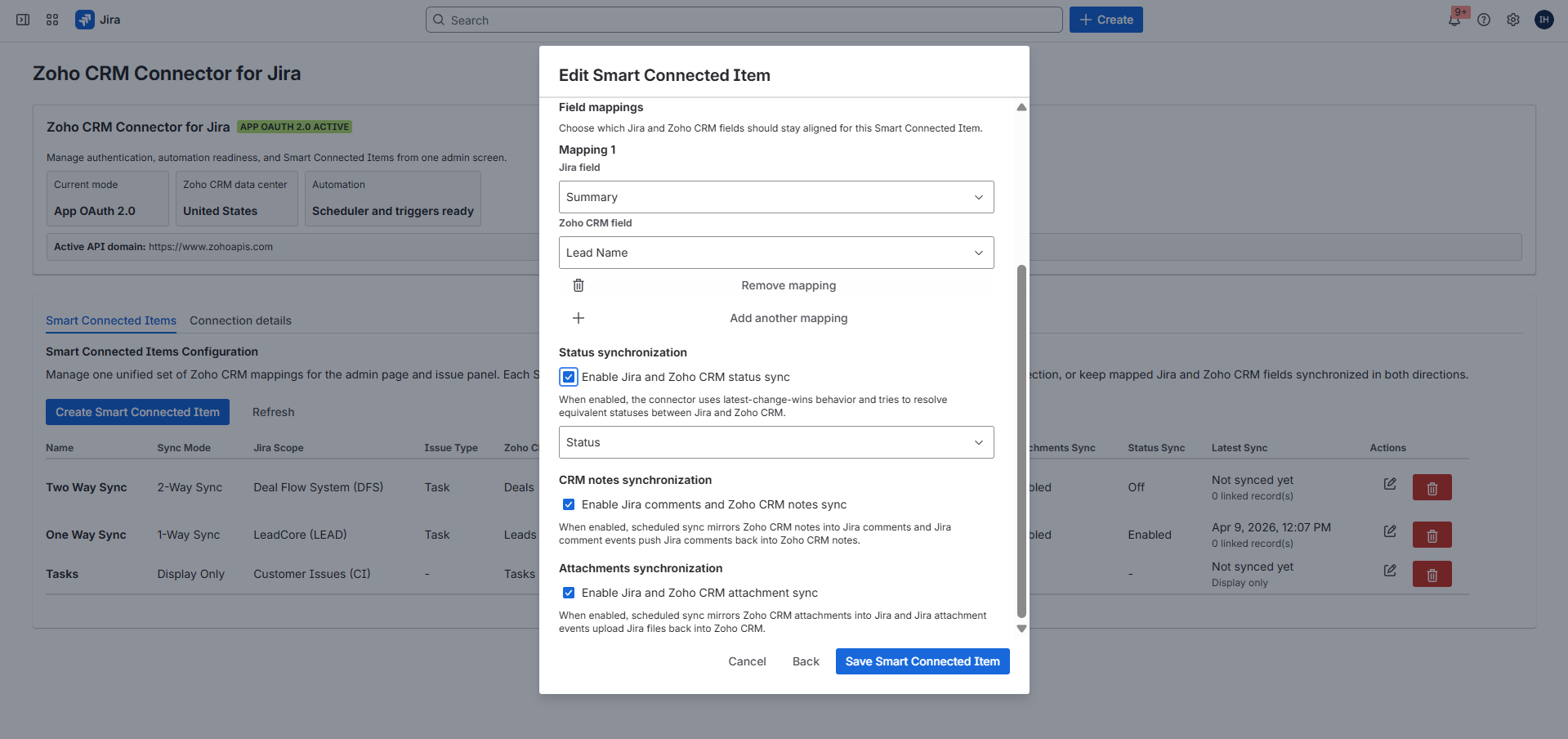
Smart Connected Items define the Jira project, issue type, Zoho CRM module, and sync mode for each connector behavior. Step 1 captures the mode and source, while step 2 captures display fields or mappings plus optional sync features.
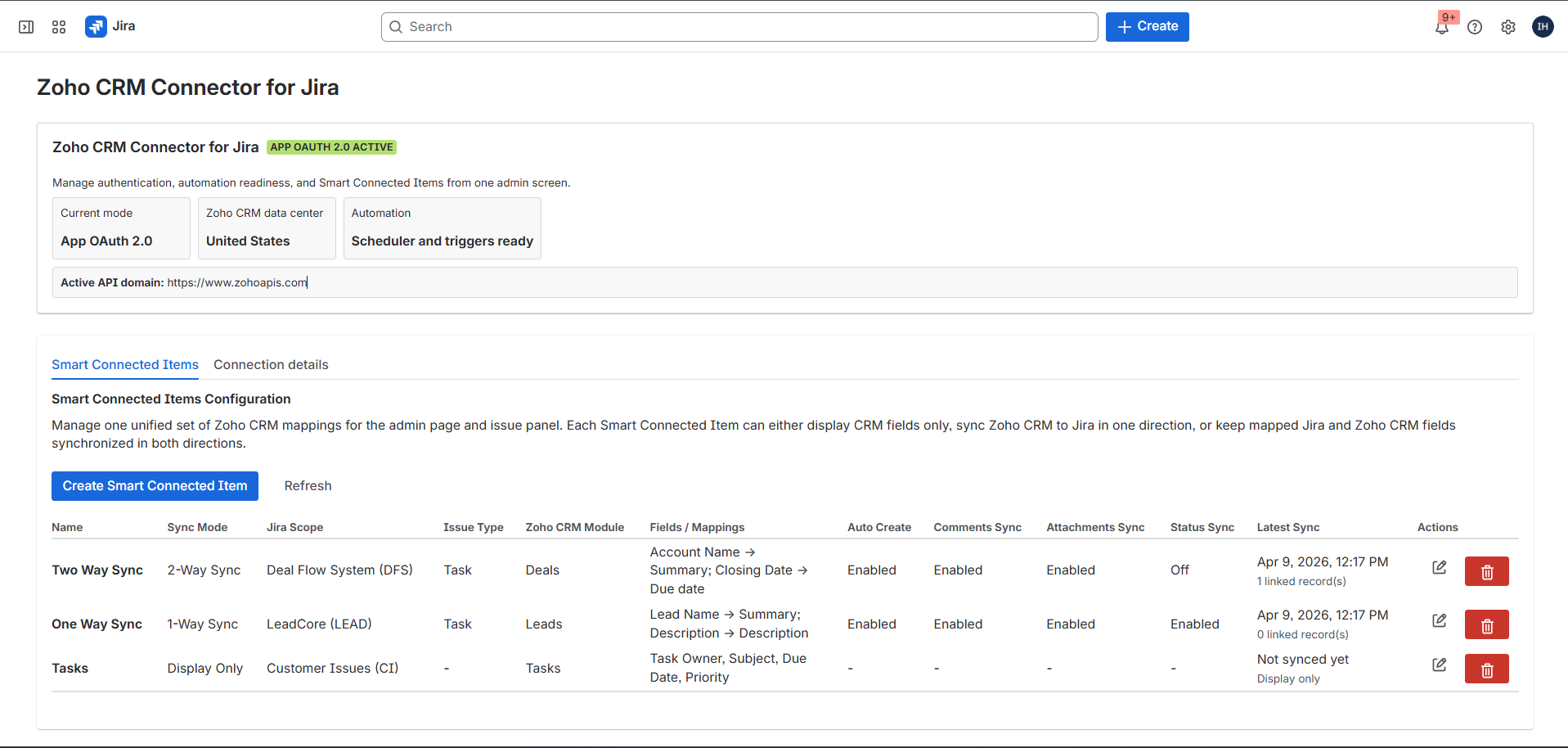
Entry point
From the dashboard, admins use Create Smart Connected Item and first choose the synchronization mode. The modal then switches into the correct flow for either display-only or synchronized setup.
Display
Manual link only. The issue panel shows the selected Zoho CRM fields after linking, with no sync.
1 Way
The scheduler keeps mapped Jira fields aligned with the linked Zoho CRM record.
2 Way
The scheduler applies CRM changes to Jira, and Jira events can push mapped changes back to Zoho CRM.
Auto-create
Available only for synchronized items when App OAuth 2.0 is active and the module is polling-ready.
Automation
Status, notes, attachments, and auto-create
Status sync
Uses latest-change-wins behavior and a selected Zoho CRM status field. App OAuth 2.0 is required.
CRM notes sync
Scheduled sync can mirror Zoho CRM notes into Jira comments, and Jira comment events can create Zoho CRM notes.
Attachment sync
Scheduled sync can pull CRM attachments into Jira, and Jira attachment events can upload Jira files back to Zoho CRM. The current resolver enforces a 10 MB maximum size.
Polling-ready modules
Leads, Contacts, Accounts, Deals, Campaigns, Calls, Events, Tasks, Products, Vendors, Price Books, Quotes, Sales Orders, Purchase Orders, Invoices, Cases, Solutions, Appointments, and Services are in the current polling list.
Jira User Guide
Use the Jira issue panel
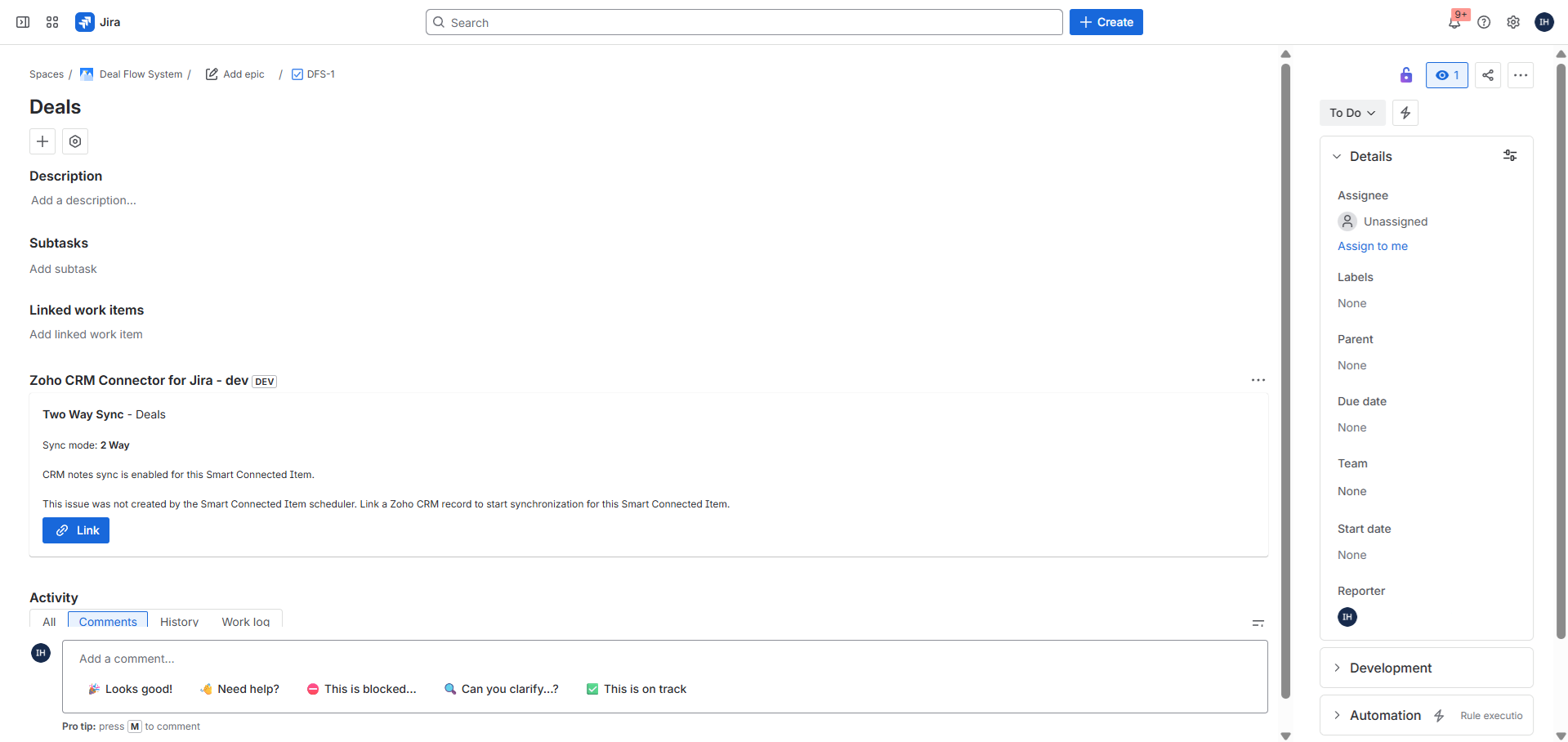
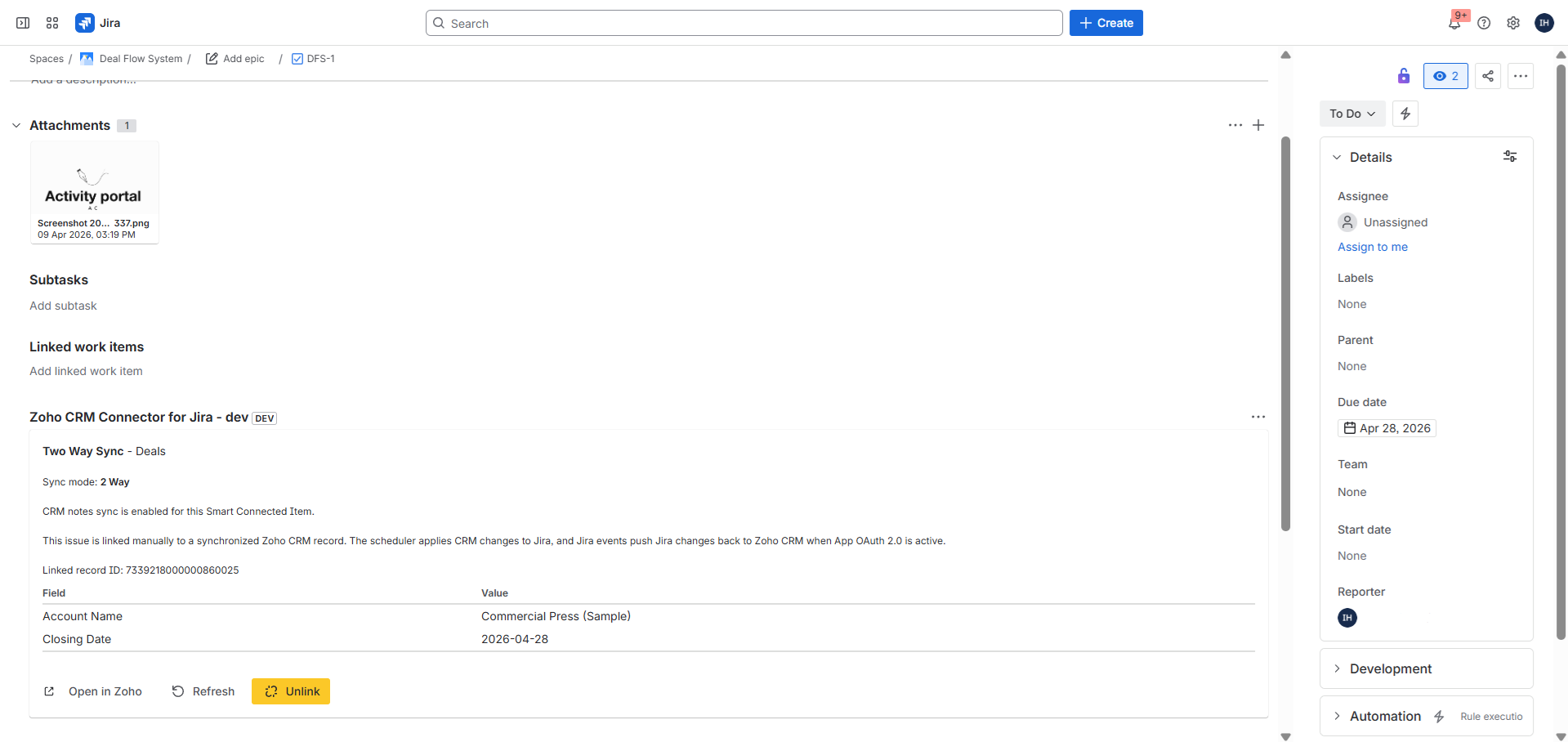
Manual links
The link dialog is titled Link a Zoho CRM record and supports search by name/title or direct CRM record ID entry.
After linking, the card can show the linked record ID, preview fields, Open in Zoho, Refresh, and for manual links Unlink.
Auto-managed links
Issues created by the scheduler are linked automatically. Those links are read-only in the issue panel, but users can still refresh and open the linked CRM record.
Provider mode shows Zoho CRM login required when the user has not signed in. App mode shows Zoho CRM authentication required if the admin setup is incomplete.
Operations
Troubleshooting and limits
Auto-create or sync options are disabled
Those features require App OAuth 2.0. Auto-create also depends on the selected Zoho CRM module being in the polling-ready module set.
Attachment sync needs attention
Reconnect App OAuth 2.0 if WorkDrive or ZohoFiles permissions are missing from the stored token.
Known timing limit
Zoho CRM polling is scheduled every five minutes, so CRM-originated changes are not instant.
Known UI limit
Auto-managed links are intentionally read-only in the issue panel and mapped Jira summary text still follows Jira length limits.
References