
App logo
Microsoft Dynamics 365 Connector for Jira Documentation
Quick, visual guide

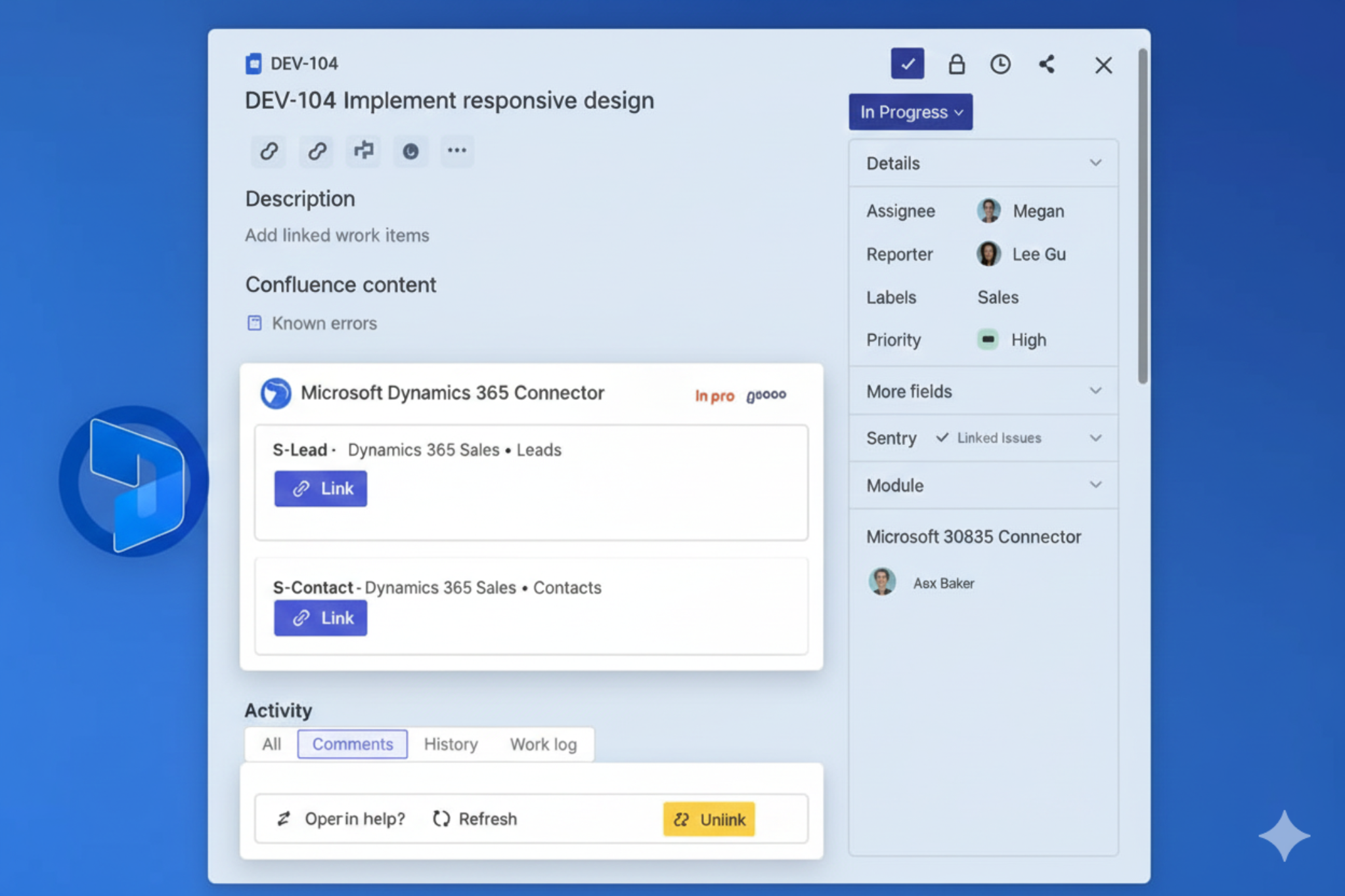
Issue panel: See available Connected Items

Inside a Jira issue, the connector lists the Connected Items configured by your admin for that project.
1
Open a Jira issue in a configured project
The “Microsoft Dynamics 365 Connector” panel appears.
The panel shows each Connected Item (example: S‑Lead, S‑Contact) with a Link action.
Screenshot: Issue panel with Link buttons5.png
Issue panel listing connected items
Users can link each Connected Item to exactly one Dynamics record.

View fields, open in Dynamics, refresh, unlink

After linking, Jira shows the chosen Dynamics fields and provides quick actions.

3
See field values inside Jira
The panel displays the configured fields with live values.
Once linked, the connector renders the field list (for example: Name, City, Mobile Phone, Email).
Screenshot: Linked record with actions7.png
Linked record showing fields and actions
The exact fields shown are defined by admins in the Connected Item configuration.
4
Use quick actions
Open, Refresh, or Unlink—right from Jira.
  • Open in Dynamics – jump straight to the record in Dynamics 365.
  • Refresh – pull the latest field values (real-time view).
  • Unlink – disconnect the record from the Jira issue.
Real-time updates Use Refresh to quickly validate customer details, lead status, or contact info—without leaving Jira.